
Reinstalling the operating system or installing an application
Change your server's operating system or install a ready-made application such as n8n or FiveM from the control panel.
A reinstall rebuilds the server with the system or application you choose.
- 1Step 1
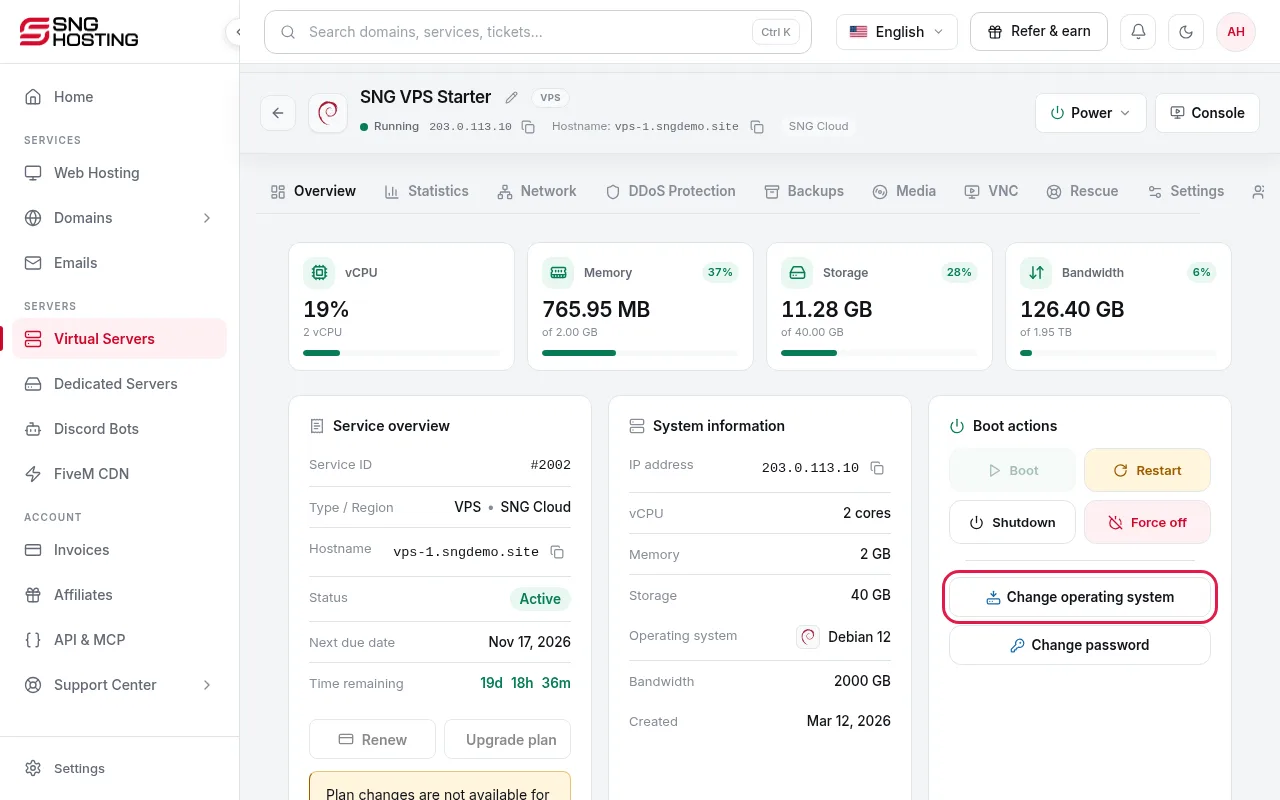
Press Change operating system
On the server page, under Boot actions, press Change operating system.
 Note
Every file on the server is permanently deleted. Back up your data before you continue.
- 2Step 2
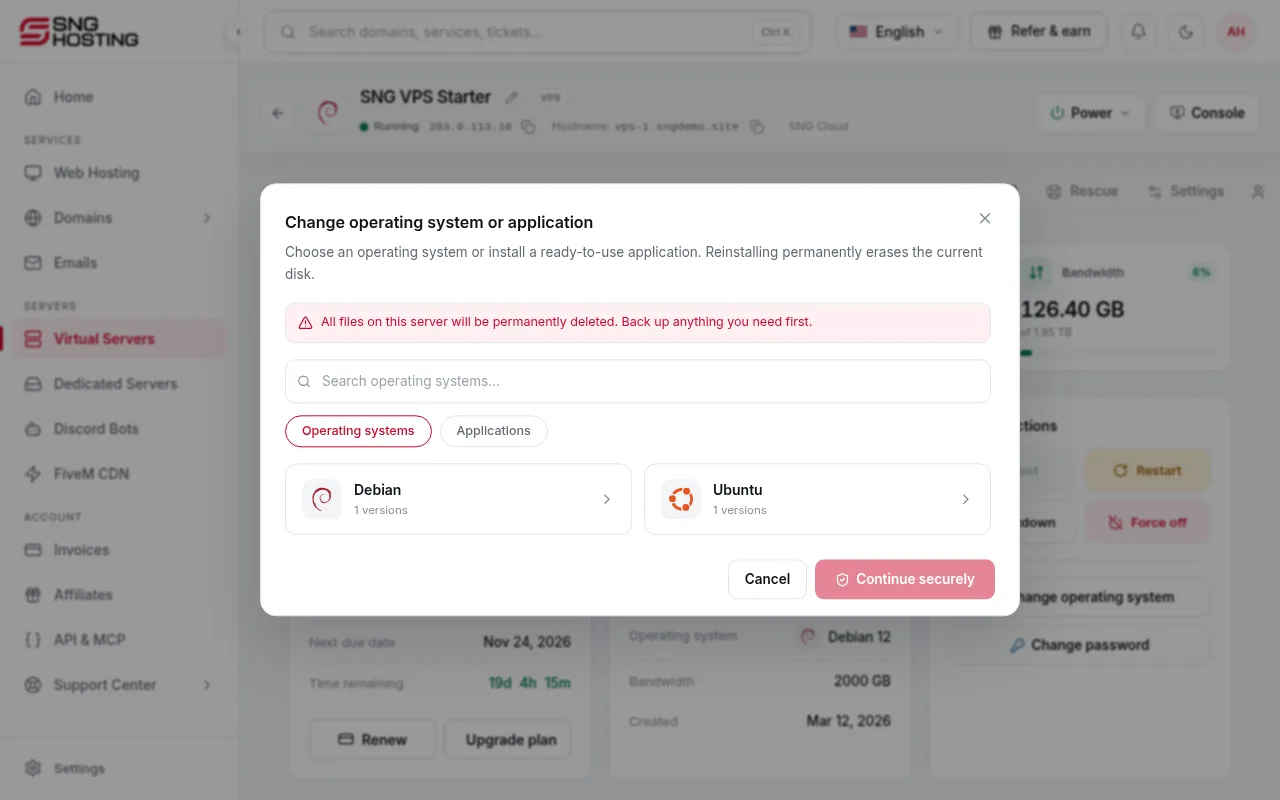
Choose a system or application
A window opens with two tabs: Operating systems (Ubuntu, Debian, Windows and others, depending on your plan) and Applications (such as n8n, FiveM or control panels). You can search by name.
- 3Step 3
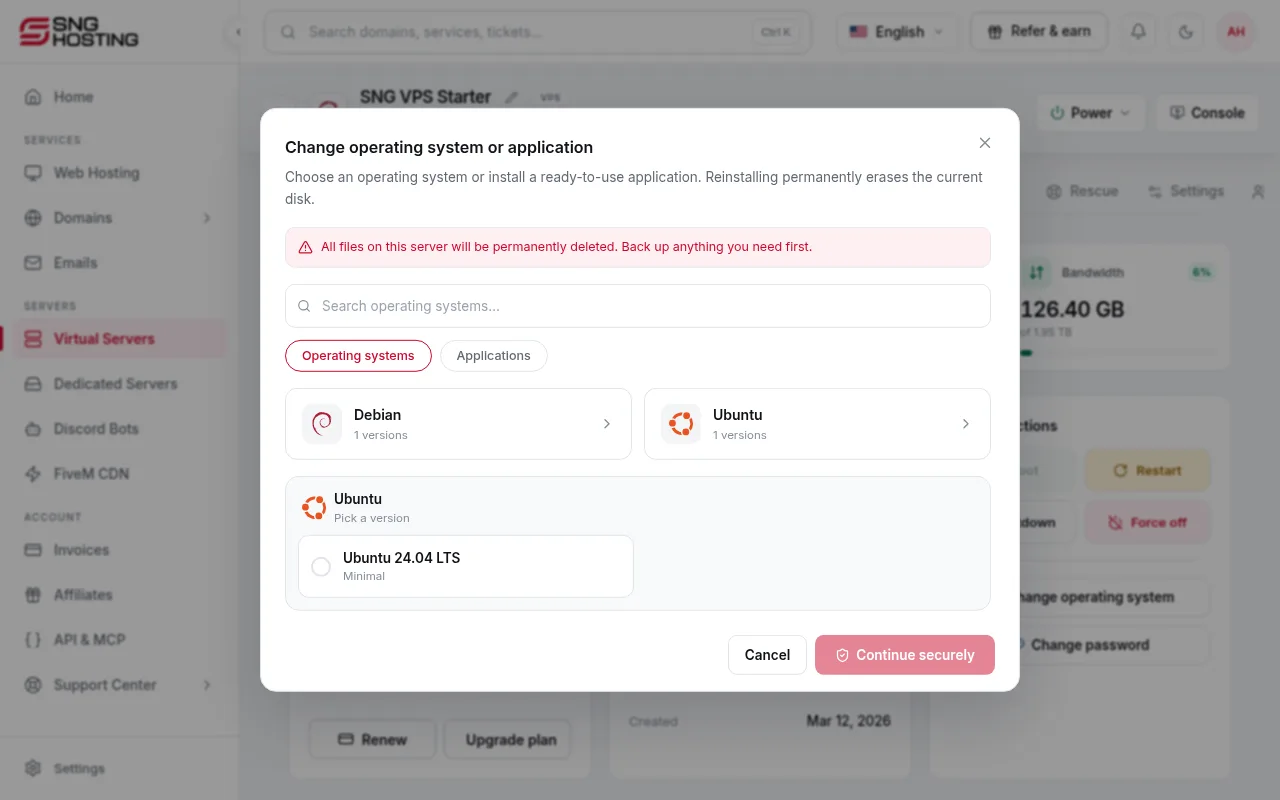
Choose the version and press Continue securely
Click the system to see its versions, pick one, then press Continue securely.
- 4Step 4
Enter the verification code
For security, you are asked for a code sent to your email, or a code from your authenticator app if you use one. Enter it and confirm.
- 5Step 5
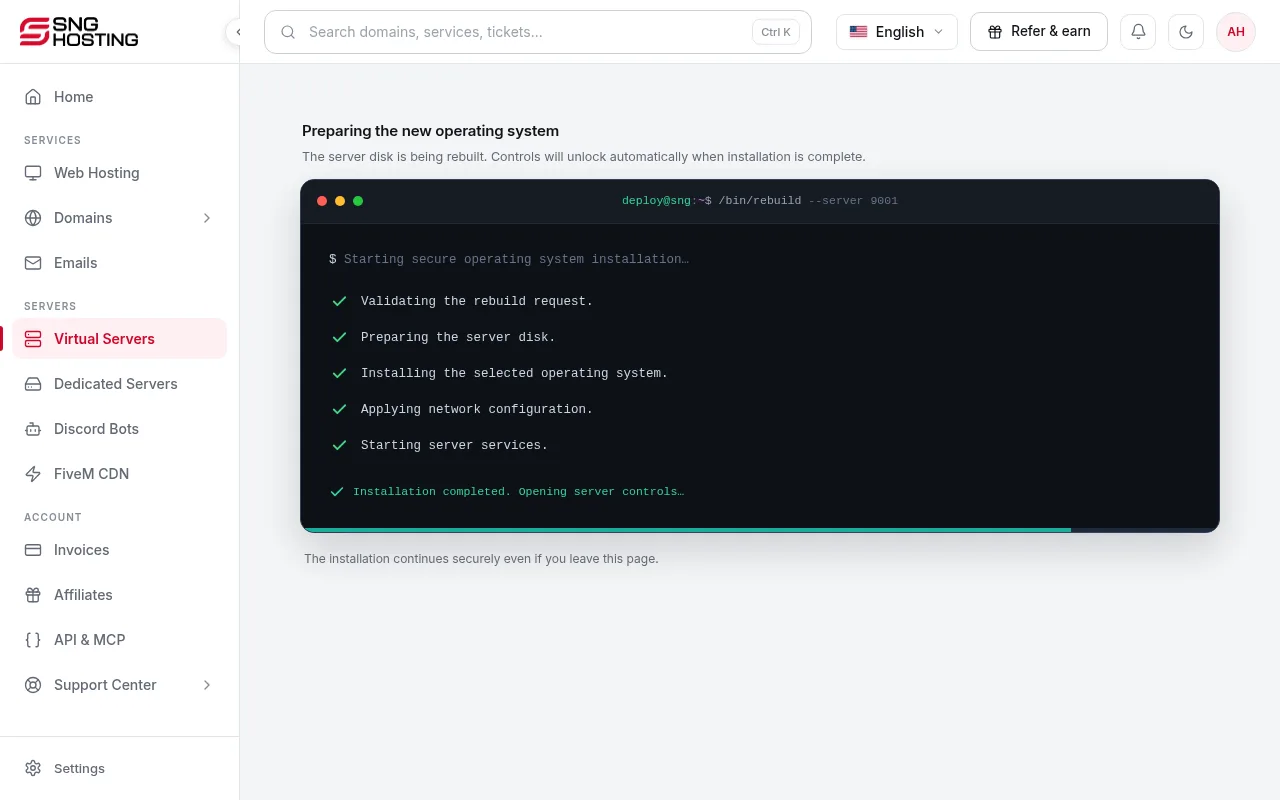
Wait for the installation
A page shows that the new operating system is being prepared, with each step. You can leave the page; the installation continues in the background. When it finishes, the controls unlock and the new sign-in details are shown.
- 6Step 6
Sign in with the new details
The password changes with the new system. Use the details shown or emailed to you. On Windows the username is Administrator; on Linux it is root.
Steps didn't work for you? Our support team is available around the clock.