
Server not responding or I can't connect
Step-by-step checks for a server that is down, slow, or refuses SSH or Remote Desktop connections.
Follow the steps in order. Most problems are solved within the first three.
- 1Step 1
Check the server status
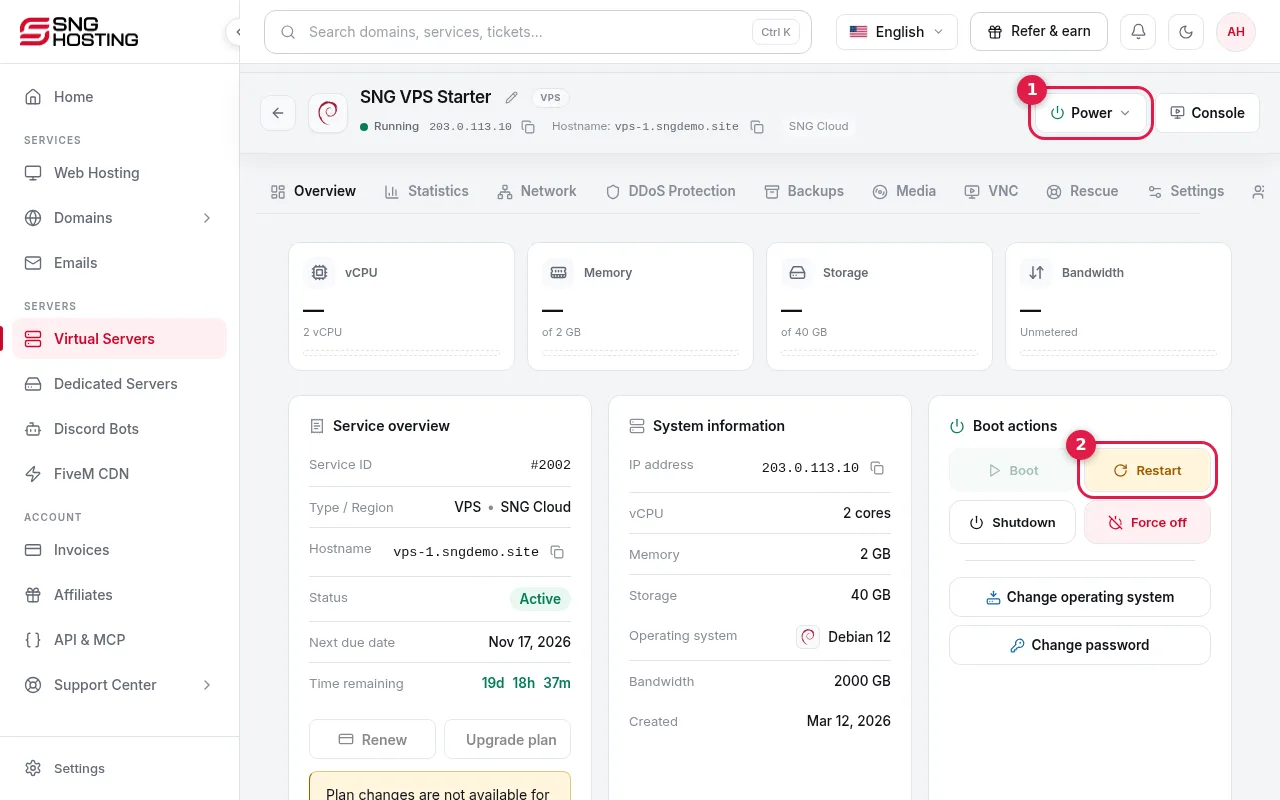
Open the server page. If it is stopped, press Start. If it is suspended for an overdue invoice, pay the invoice. If the page says an action is in progress (a backup or reinstall), wait for it to finish.
- 2Step 2
Restart the server
Press Restart, wait one or two minutes, then try to connect again.
- 3Step 3
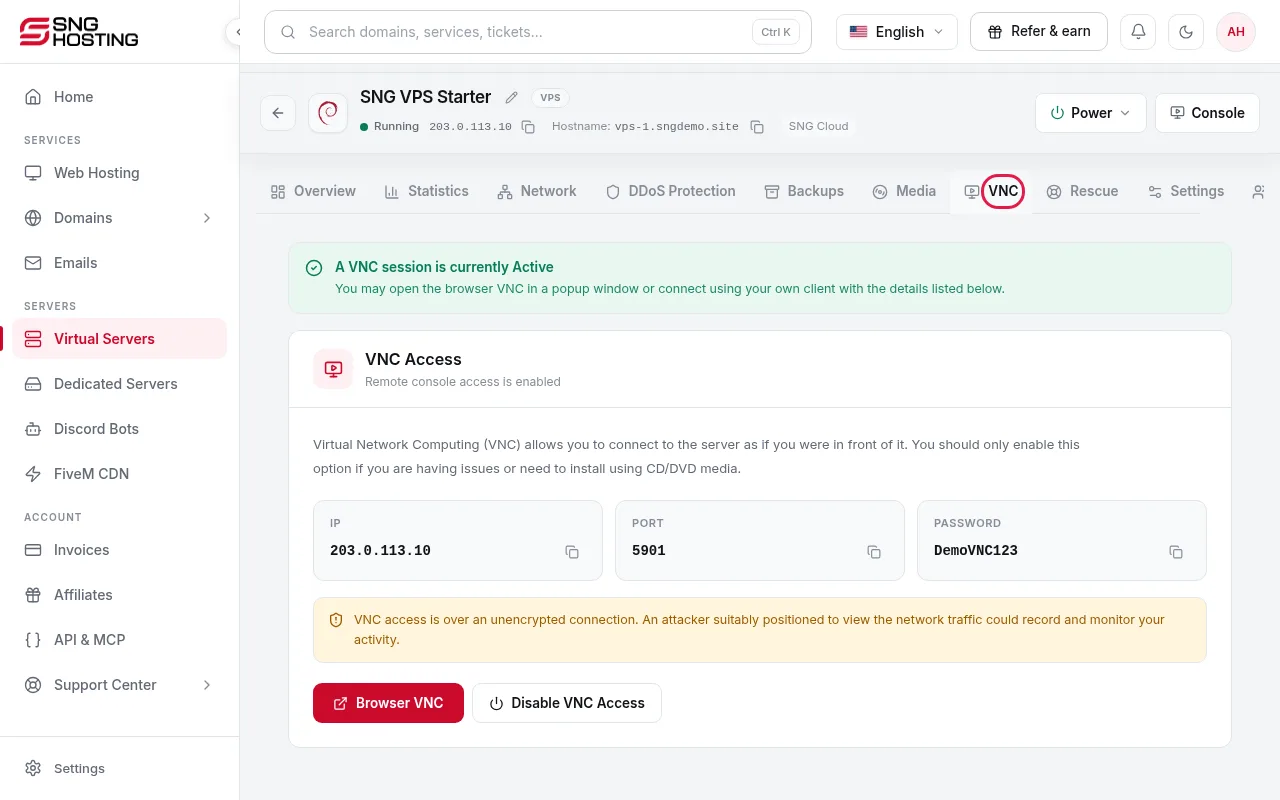
Look at the screen in the VNC tab
The VNC tab shows the server screen as if you were in front of it. It reveals boot errors, a full disk, or a firewall that blocks SSH or RDP.
- 4Step 4
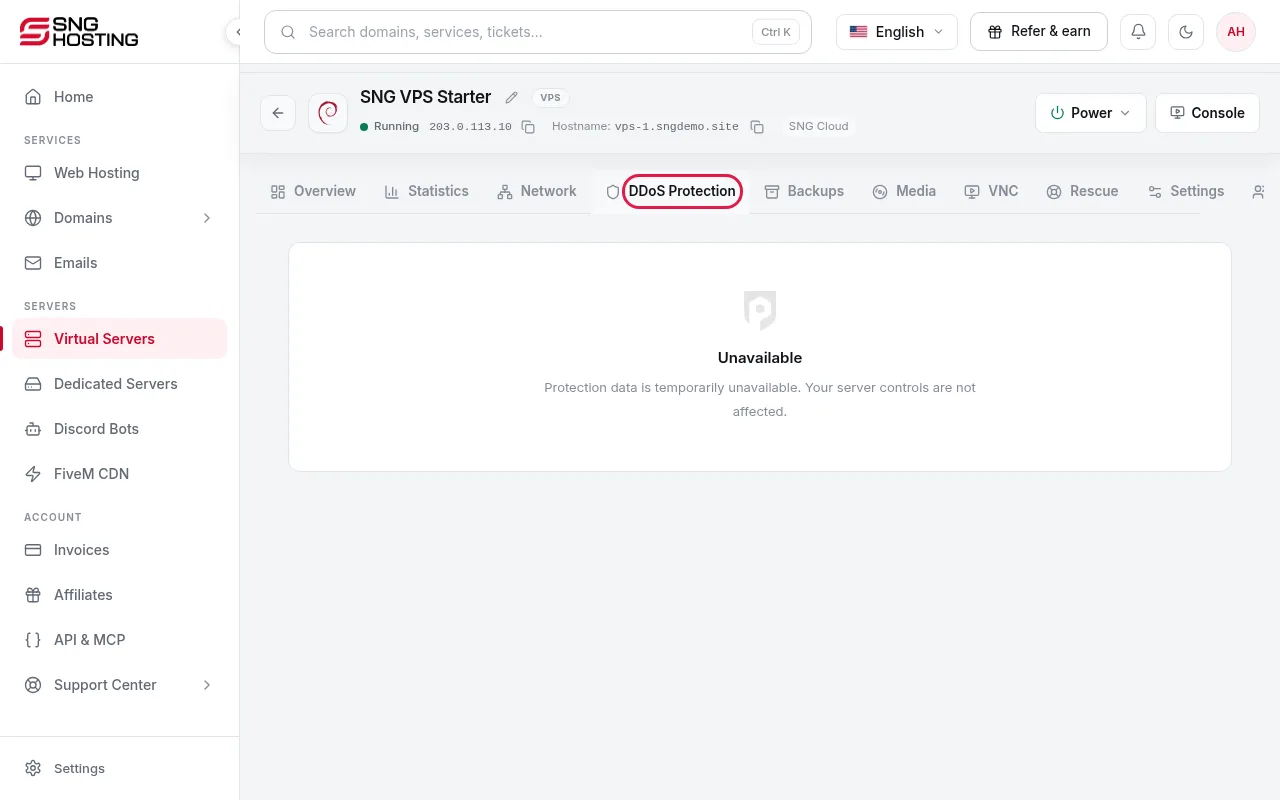
Check the DDoS Protection tab
An ongoing attack is shown in this tab. Mitigation runs automatically and you do not need to do anything.
- 5Step 5
Check your connection details
If SSH or RDP still fails, check the port (did you change it?), the firewall rules inside the server, and the password. You can set a new password from the server page.
- 6Step 6
Open a support ticket
If the server is still down after these steps, open a Technical ticket with the server name and what you tried. The support team takes over from there.
Good to know
- If the server page is slow or the live status does not load, the panel shows the last known state until the connection is back.
- Network status in the Support section lists announced outages and maintenance. Check it first when any service is down.
Steps didn't work for you? Our support team is available around the clock.