
Opening and following a support ticket
Open a ticket from the control panel or Discord, attach screenshots, and follow replies live.
The support team replies inside the ticket, and you are notified of every reply.
- 1Step 1
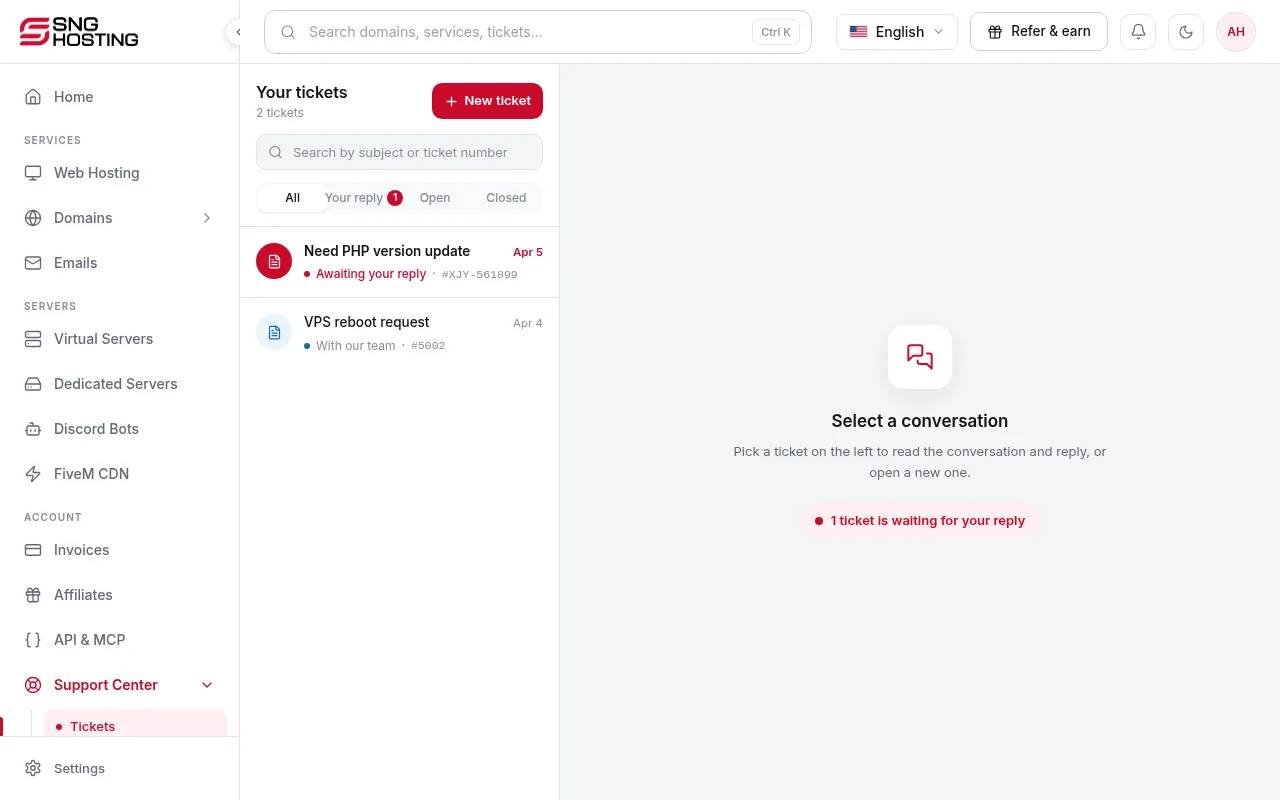
Open your tickets
In the menu choose Support → Tickets to see your previous tickets.
- 2Step 2
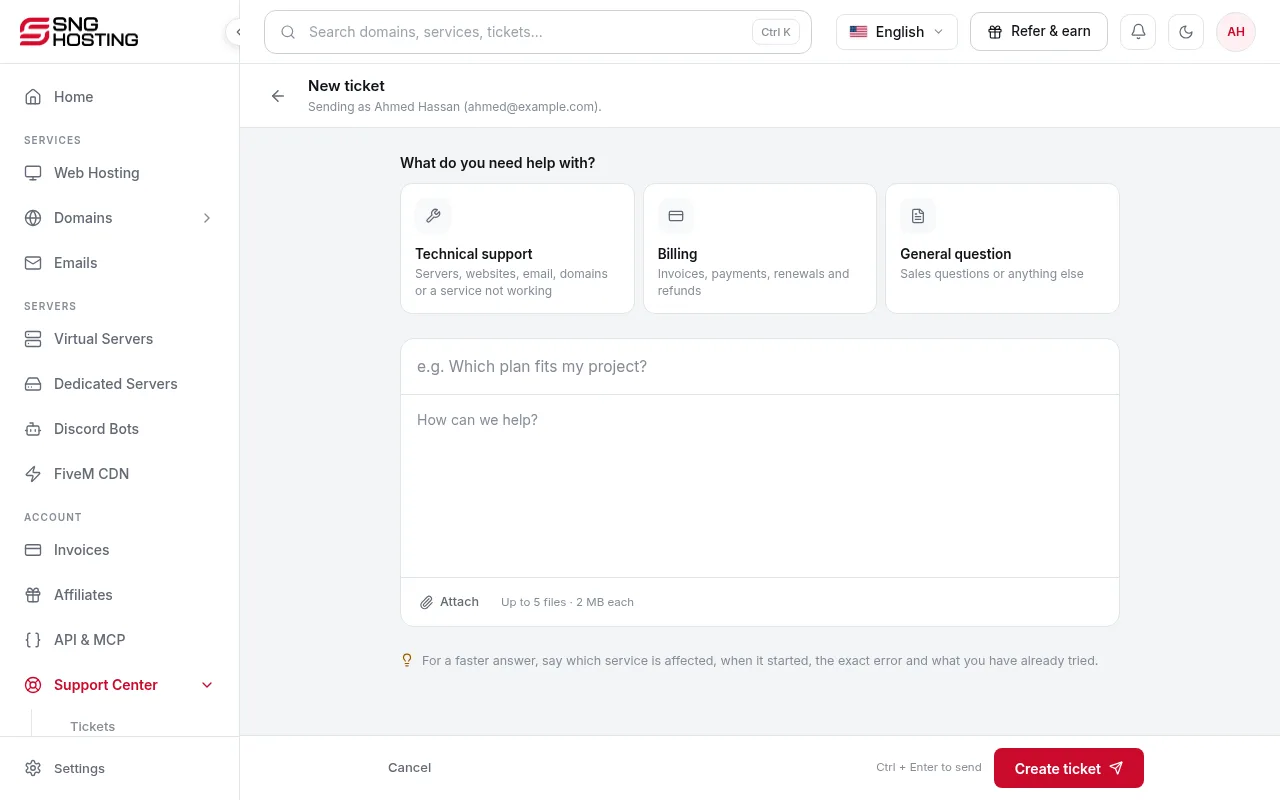
Open a new ticket
Press Open ticket and choose a category: Technical for servers, websites, email and domains, or Billing for invoices, payments, renewals and refunds. You can paste a screenshot straight into the message or drag files onto it.
- 3Step 3
Follow the replies
Replies appear live, and you are notified by email, and by Discord if it is linked. Close the ticket when it is solved; replying later reopens it.
- 4Step 4
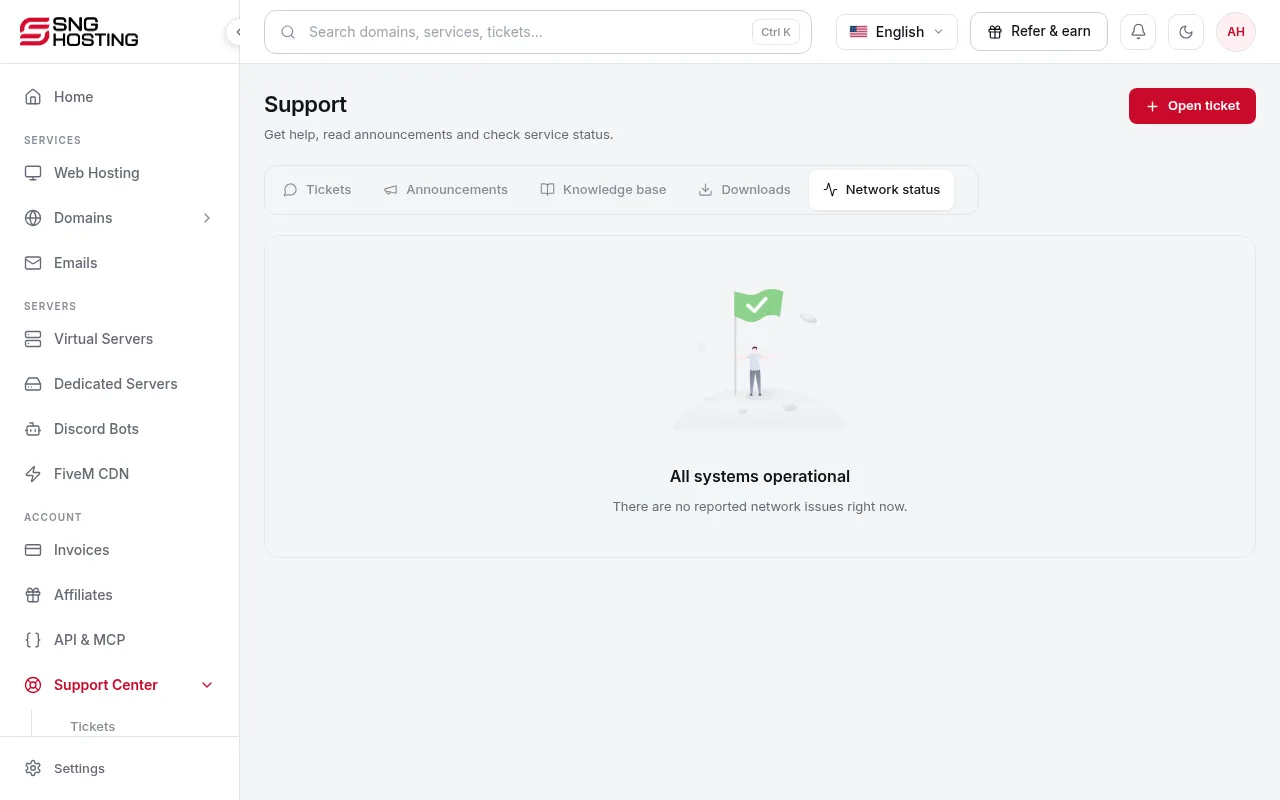
Check the network status
If a service is down, check Network status first for announced outages and maintenance.
Tickets from Discord
- You can open a ticket from the SNG Discord server. Link Discord in Settings → Account information so tickets are tied to your account and Discord messages and website replies stay in sync.
Steps didn't work for you? Our support team is available around the clock.