
Server sign-in details: IP address, username and password
Where to find your server's IP address and username, and how to get the password or create a new one.
You need three things to sign in to your server: the IP address, the username and the password.
- 1Step 1
IP address
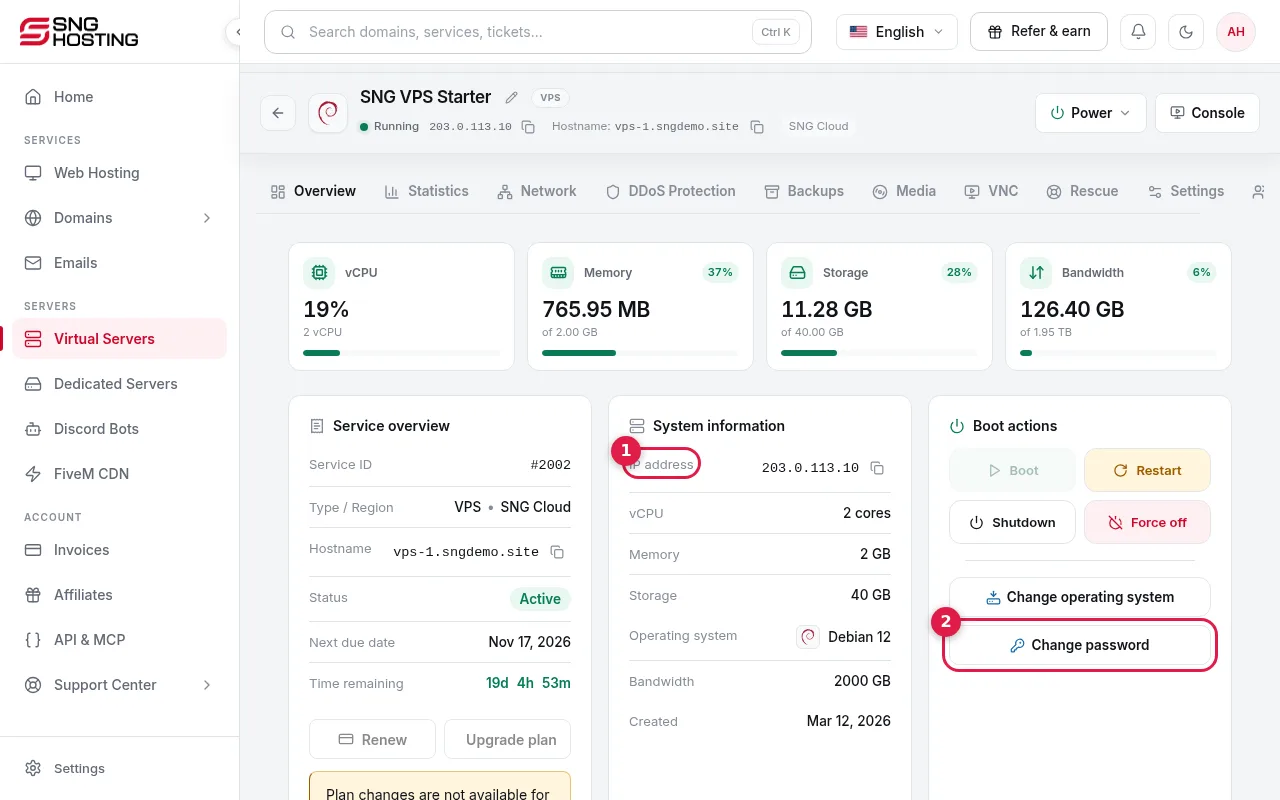
Open Servers → your server. Under System information you will find the IP address (1); use the copy button next to it. It is also shown at the top of the page next to the server status.
- 2Step 2
Username
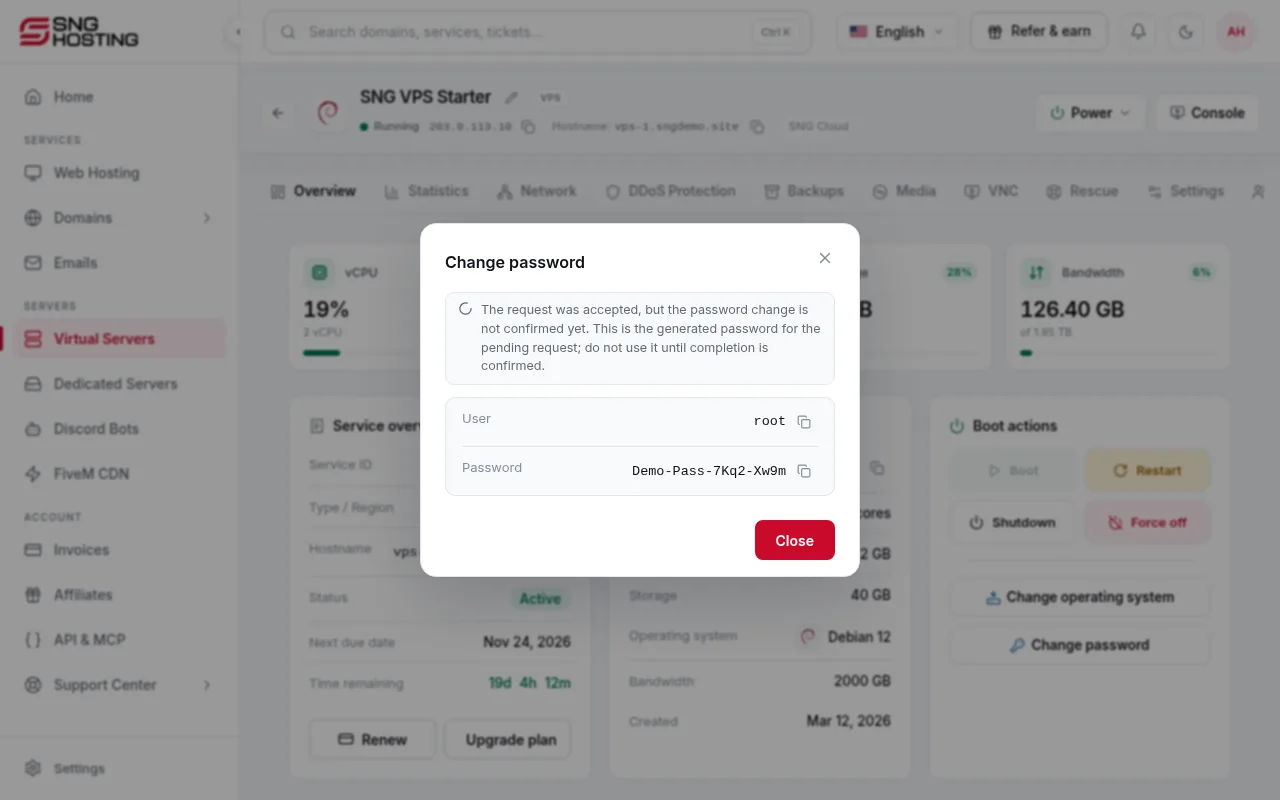
On Linux servers the username is root; on Windows servers it is Administrator.
- 3Step 3
Password from your email
When the server is set up, an email with the sign-in details is sent to your account email. Search your inbox (and spam folder) for SNG's message about the server.
- 4Step 4
Or create a new password
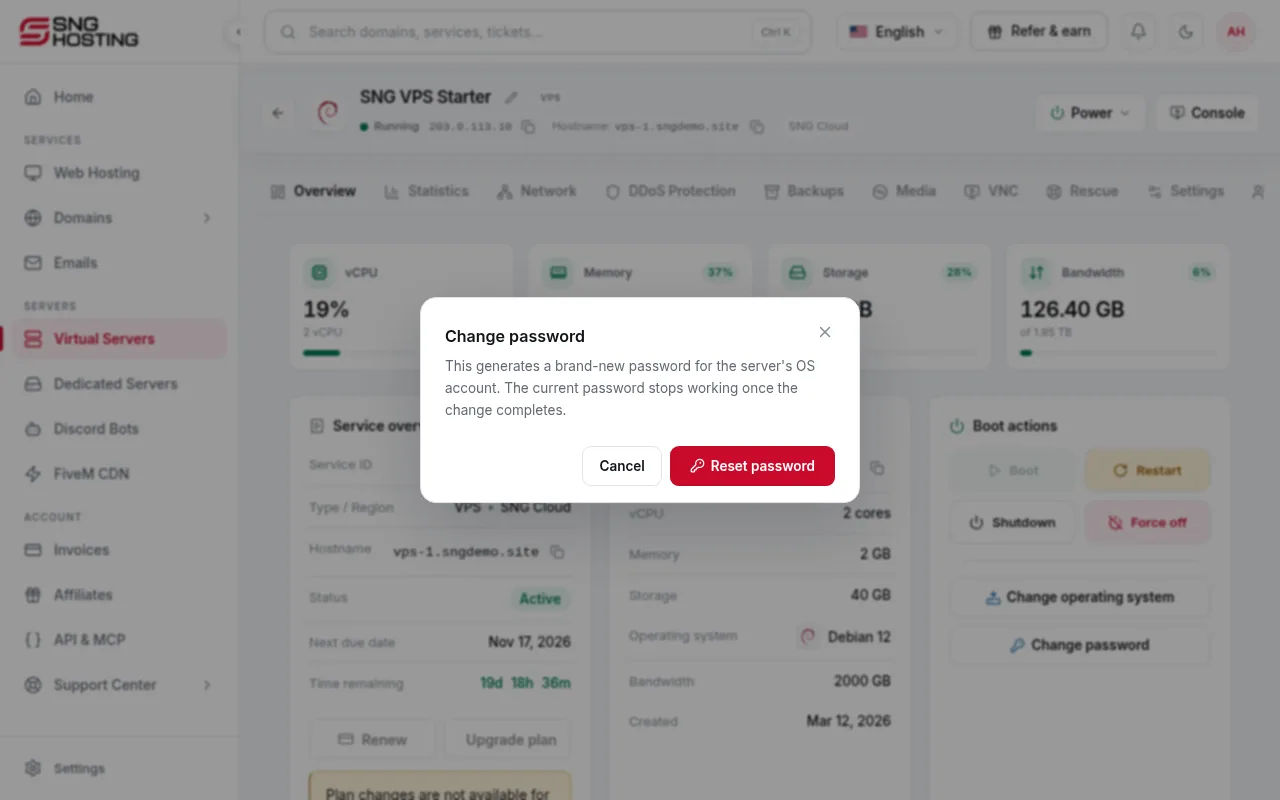
Press Change password (2) on the server page, then confirm in the window.
- 5Step 5
Copy the new password
The new password is shown with the username. Copy it with the copy button and keep it somewhere safe. If it says the change is not confirmed yet, wait a moment before using it.
 Note
The old password stops working once the change completes.
Useful to know
- Linux: connect by SSH on port 22. Windows: connect by Remote Desktop on port 3389.
- SNG staff will never ask for your server password. Do not send it to anyone.
Steps didn't work for you? Our support team is available around the clock.