
Connecting to a Windows server with Remote Desktop (RDP)
A detailed guide to connect to a Windows server from a Windows PC, a Mac or a phone, and to fix connection problems.
Remote Desktop shows your Windows server's screen on your device so you can work on it as if you were in front of it.
- 1Step 1
Get your sign-in details
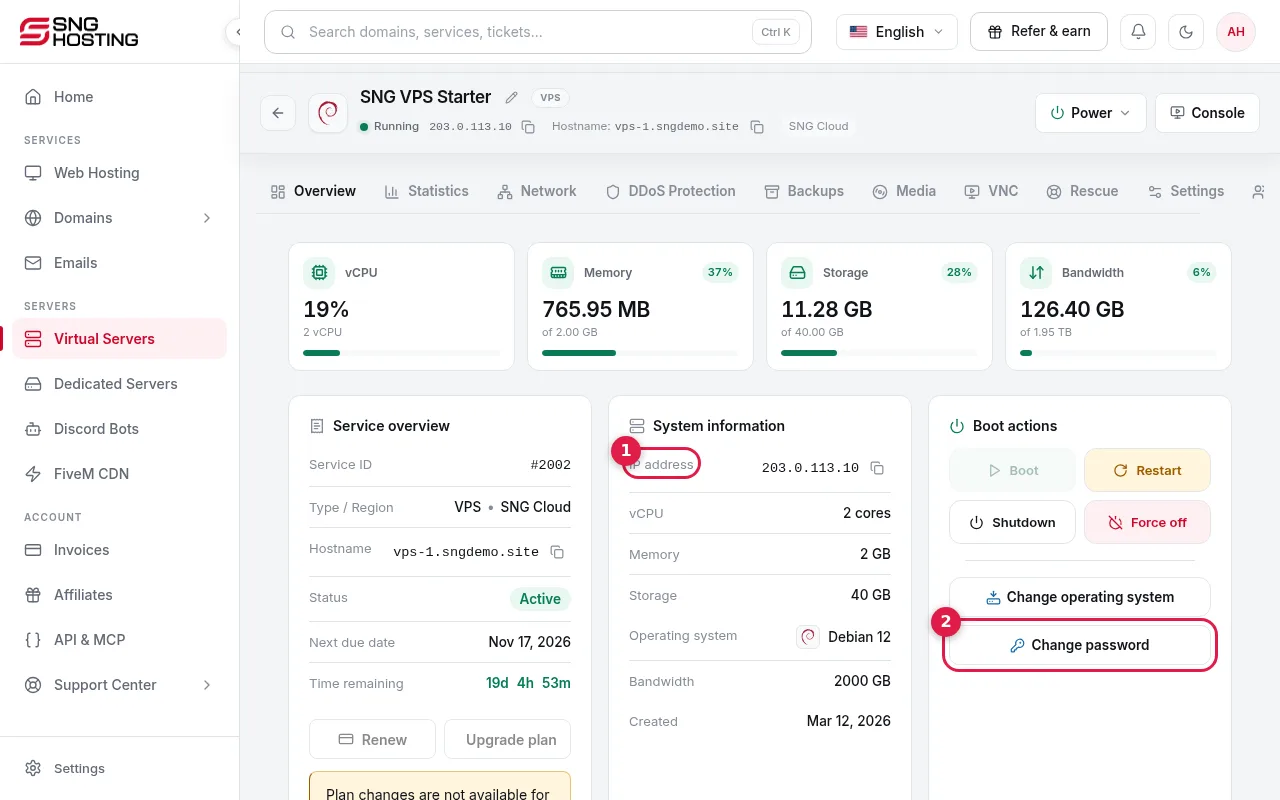
On the server page copy the IP address (1). The username is Administrator, and the password is in the email, or create a new one with Change password (2).
- 2Step 2
Open Remote Desktop Connection (Windows)
Press the Windows key, type mstsc or Remote Desktop Connection, and open it.
- 3Step 3
Enter the IP address and press Connect
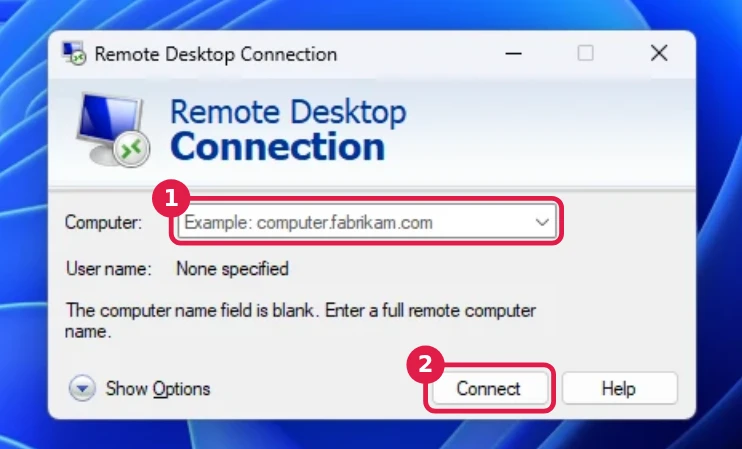
In the Computer field (1) type the server's IP address. If you changed the RDP port, add it after a colon, such as 203.0.113.10:3390. Press Connect (2).
- 4Step 4
Enter the username and password
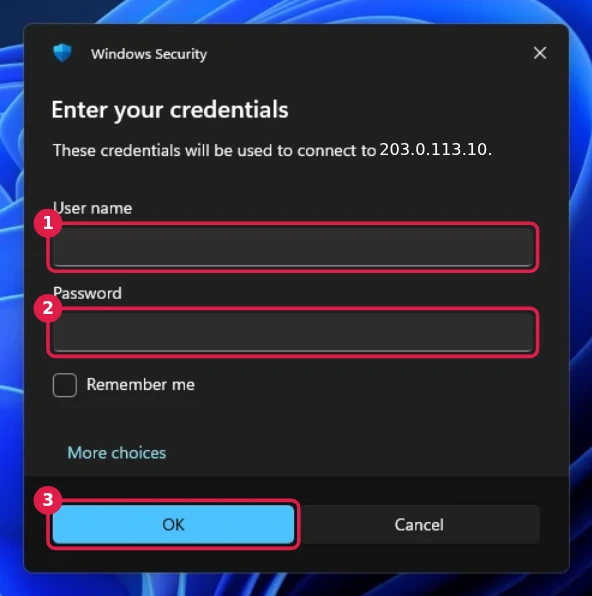
The Windows Security window opens. Type Administrator in User name (1), paste the password in Password (2), then press OK (3). If a saved username is shown, choose More choices → Use a different account.
- 5Step 5
Accept the server certificate
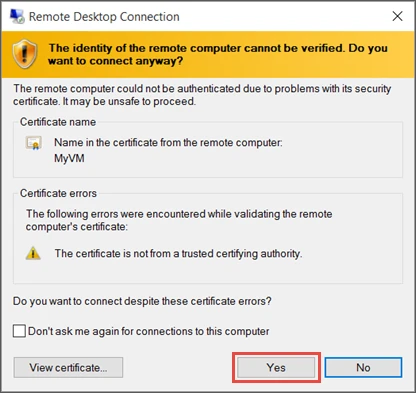
On the first connection a message says the identity of the remote computer cannot be verified. This is normal for a new server. Tick Don't ask me again and press Yes.
 Note
Image: Microsoft Learn, licensed under CC BY 4.0.
- 6Step 6
From a Mac or phone
Install Microsoft's Windows App (App Store or Google Play), press + → Add PC, type the IP address, add the Administrator account and password, then tap the server to connect.
If it does not connect
- Your credentials did not work: check the username Administrator and the password. If it still fails, create a new password in the control panel.
- Remote Desktop can't connect: make sure the server is running in the control panel, the right port is used, and Windows Firewall allows RDP.
- If you blocked RDP in the firewall by mistake, open the VNC tab on the server page to reach the screen directly and fix it.
- Windows can take a few minutes after setup before it accepts the first connection.
Steps didn't work for you? Our support team is available around the clock.