
How to order a VPS from the SNG website, step by step
Choose a plan, pick the term, location and operating system, then pay and get your server within minutes.
Ordering takes a few minutes on the website, and the server is set up automatically after payment. Prices in the screenshots are the store prices when this guide was written; the price shown when you order is the one that applies.
- 1Step 1
Choose a plan
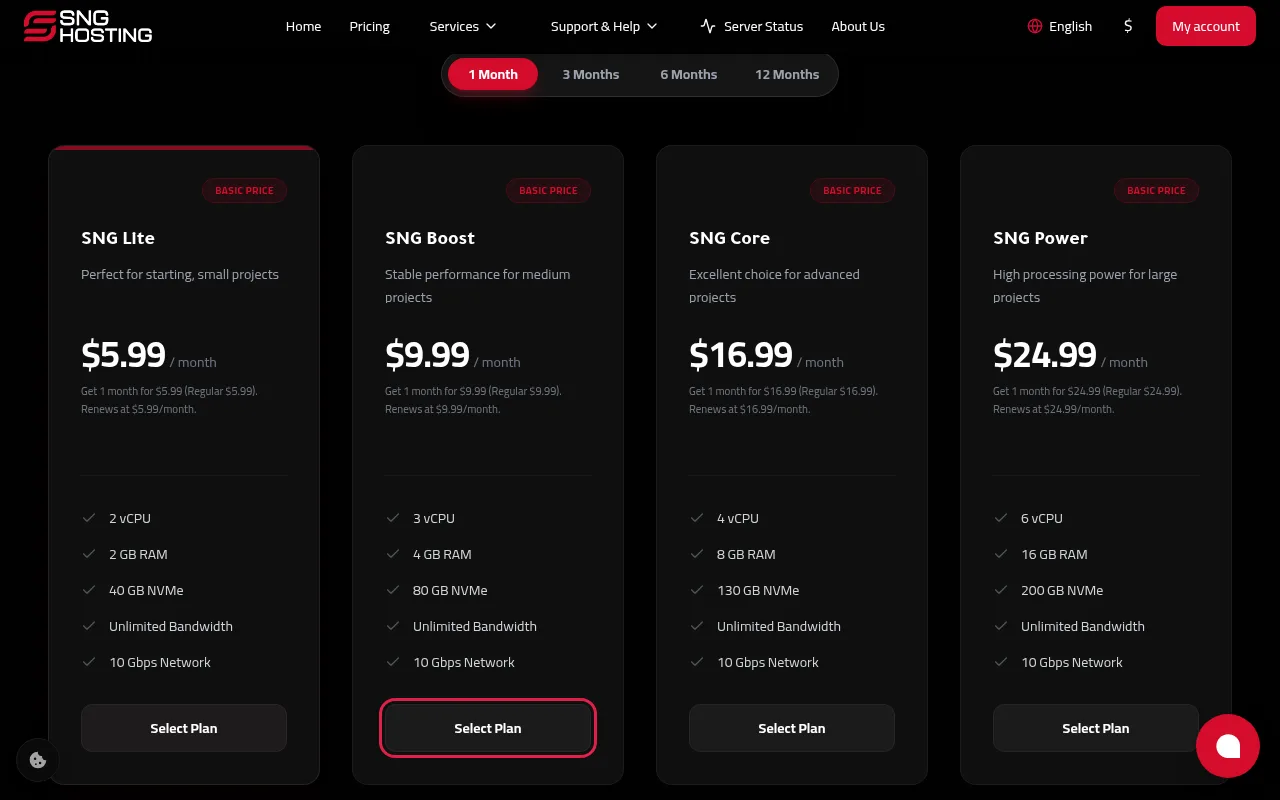
Open the VPS page on snghosting.com, choose the term at the top of the table (1, 3, 6 or 12 months), then press Select Plan under the plan you want.
- 2Step 2
Choose the term and location
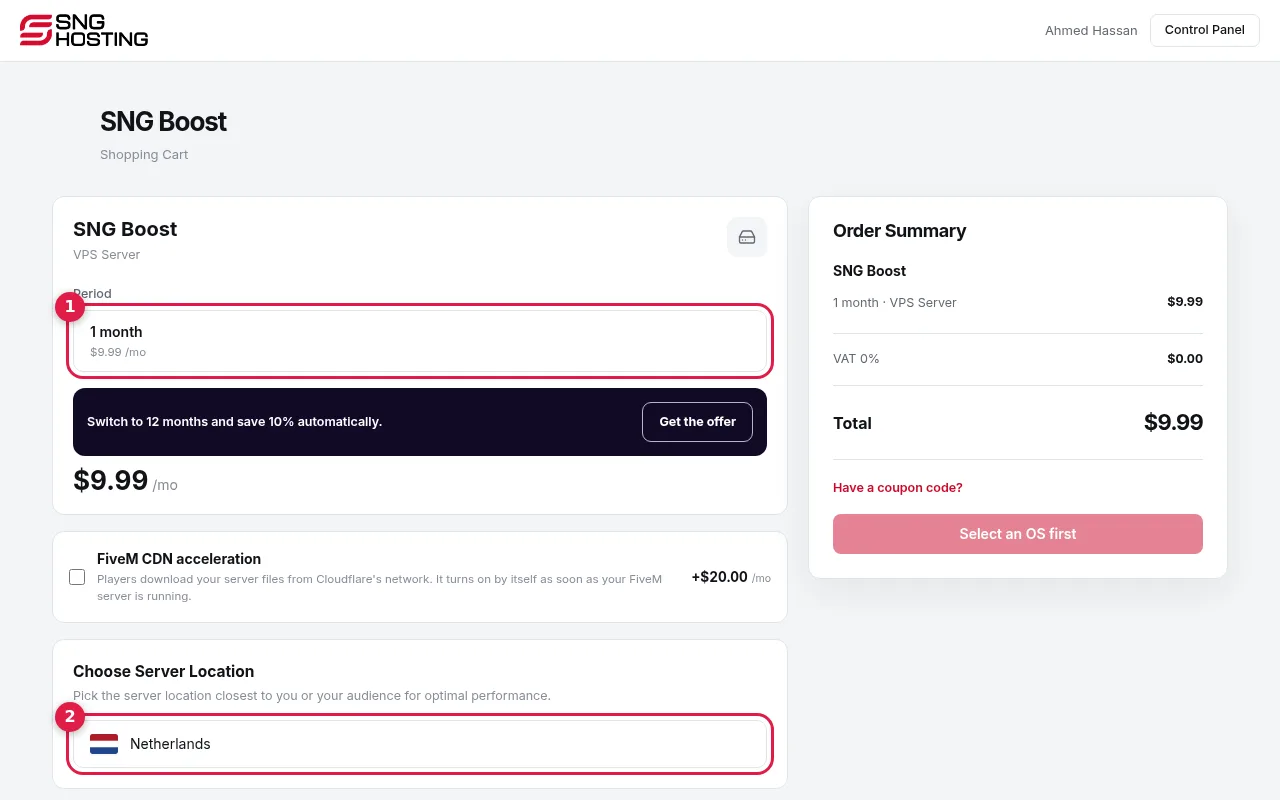
The cart opens. Choose the subscription term (1); longer terms get a bigger discount. Then choose the server location closest to you or your visitors (2). You can also add the FiveM CDN if the server is for a FiveM server.
- 3Step 3
Choose the operating system
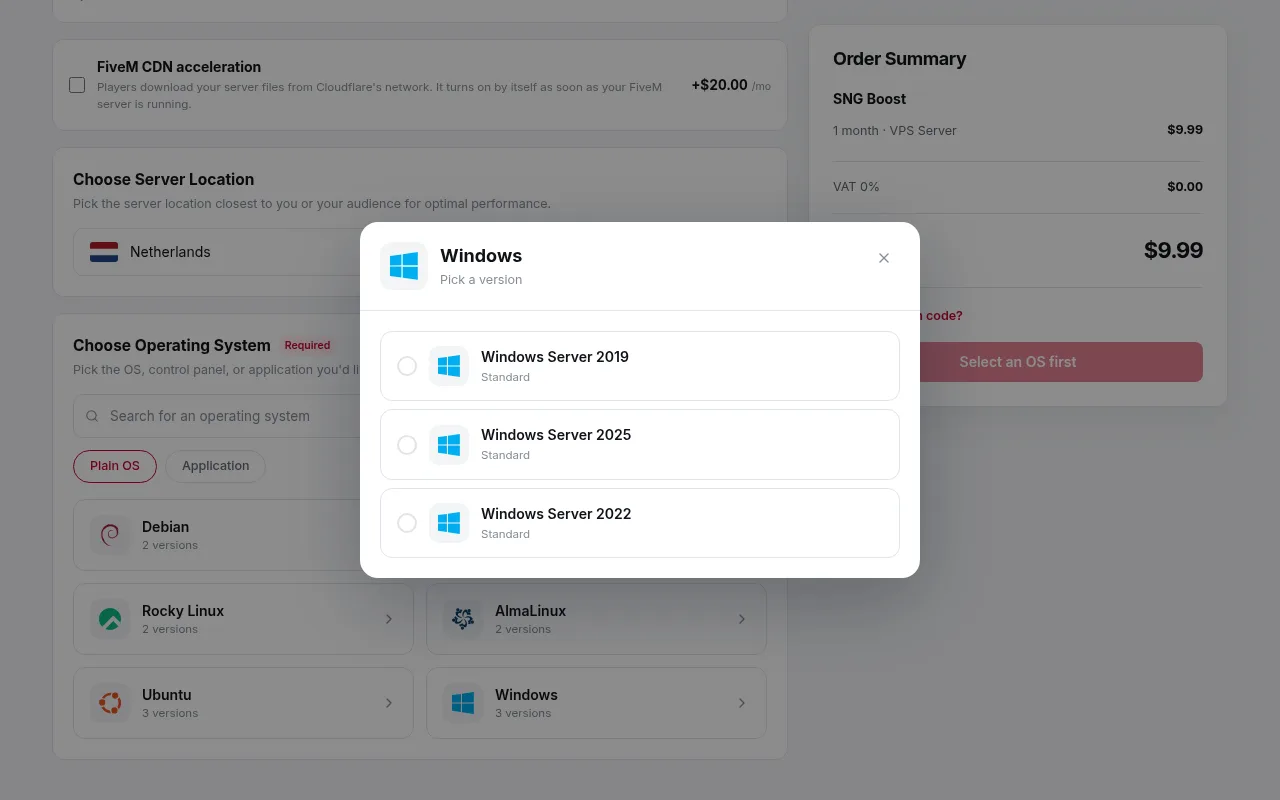
Under the operating system section, pick a system (such as Ubuntu, Debian or Windows), then the version in the window that opens. The Application tab offers ready-made applications instead of a plain system. You can change the system later from the control panel.
- 4Step 4
Review the summary and press Continue
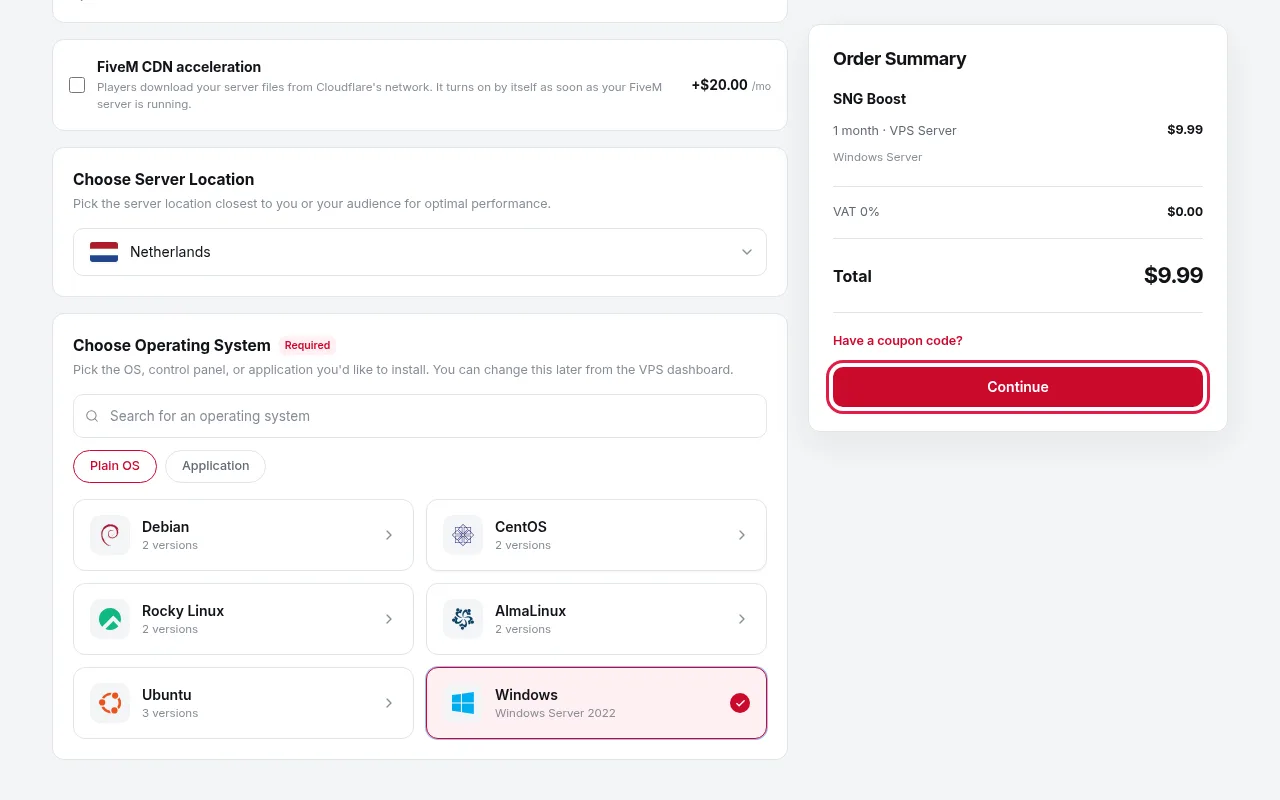
The order summary shows the plan, the price and the total. If you have a discount code, press Have a coupon code?. Then press Continue.
- 5Step 5
Sign in or create an account
If you are not signed in, you are asked to sign in or to create an account in three steps (email and password, country, phone number).
- 6Step 6
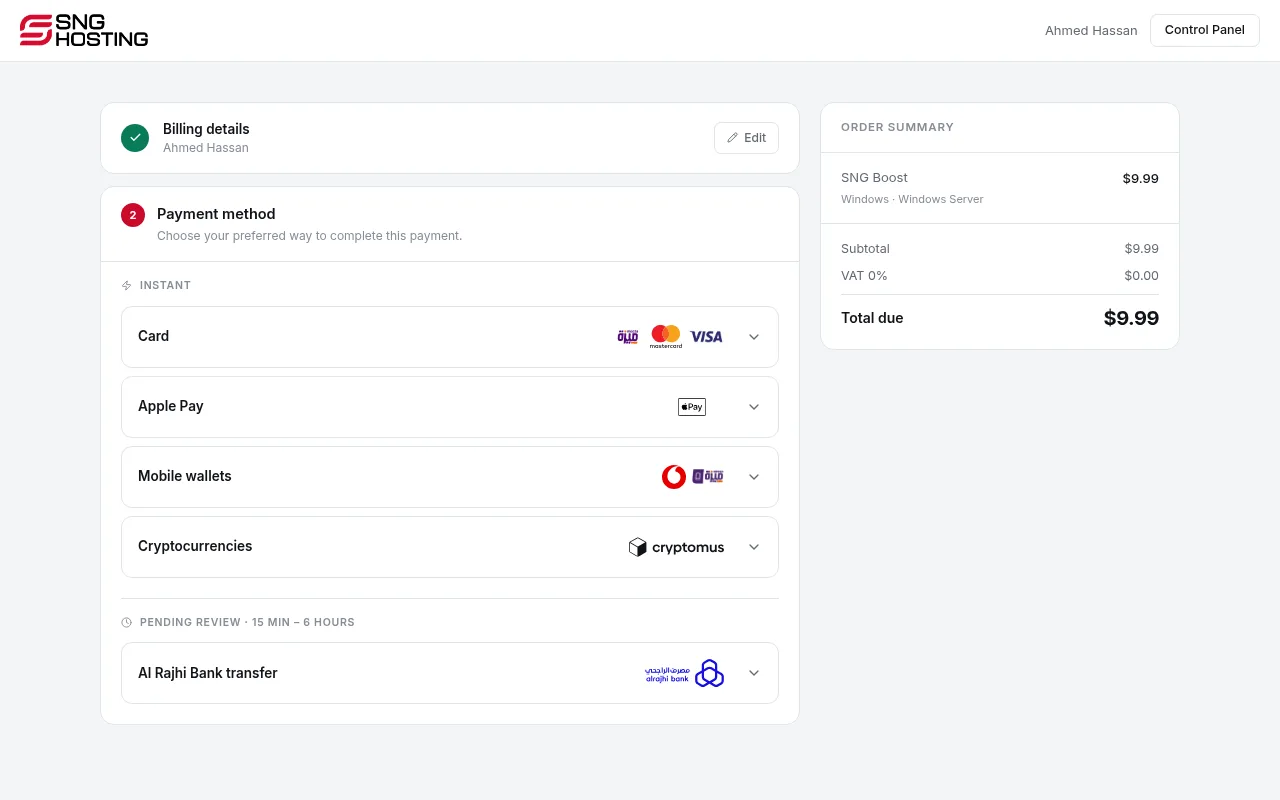
Choose a payment method and pay
Choose card, Apple Pay, mobile wallets or cryptocurrency for an instant payment, or a bank transfer (reviewed within 15 minutes to 6 hours).
- 7Step 7
Get your server
After payment the server is set up automatically within minutes, the sign-in details are emailed to you, and the server appears in the control panel under Servers. See First steps with a new VPS to connect to it.
Before you order
- Windows is not available on every plan. If it is not in the list, choose a bigger plan.
- You can upgrade to a bigger plan later from the control panel without losing data.
Steps didn't work for you? Our support team is available around the clock.