
Paying an invoice: card, Apple Pay, wallets, bank transfer and crypto
How to pay any invoice from the control panel, what each payment method does, and what happens after you pay.
You pay any invoice from its page in the control panel. Amounts in the screenshots are examples; the correct amount is always the one on your invoice.
- 1Step 1
Open the invoice
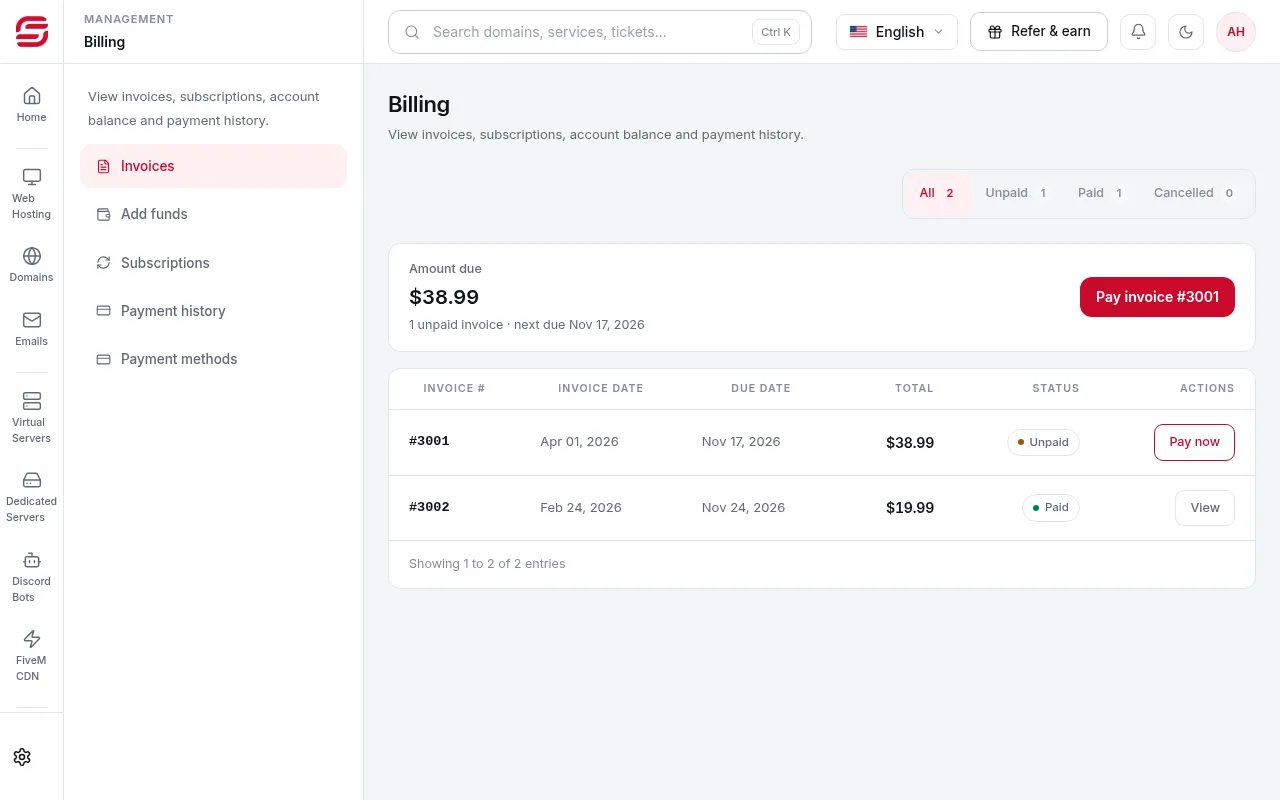
In the menu choose Billing → Invoices. Use the Unpaid filter to see what you owe, then open the invoice number.
- 2Step 2
Choose: the Pay button or Apple Pay directly
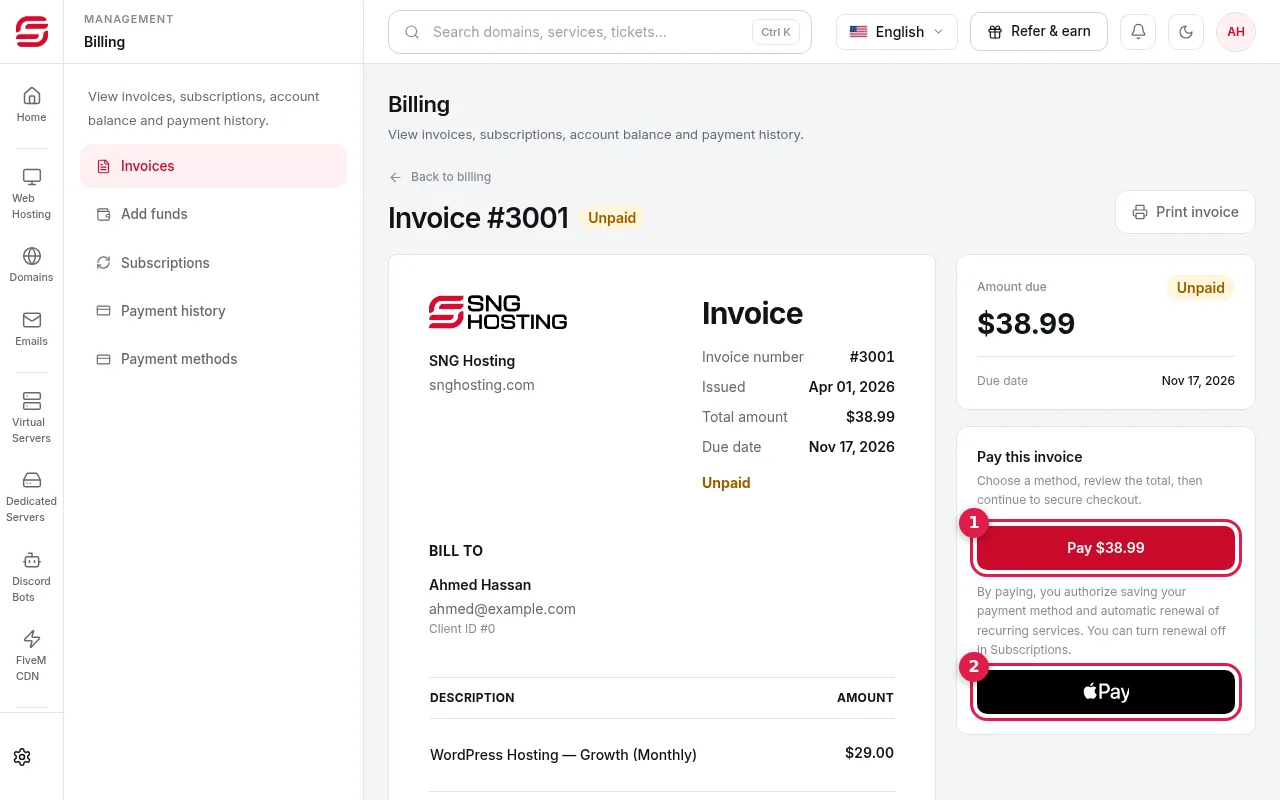
In the Pay this invoice box you will find the Pay button with the amount (1) to choose any payment method, and below it the black Apple Pay button (2) to pay directly from an iPhone, iPad or Mac.
- 3Step 3
Choose a payment method
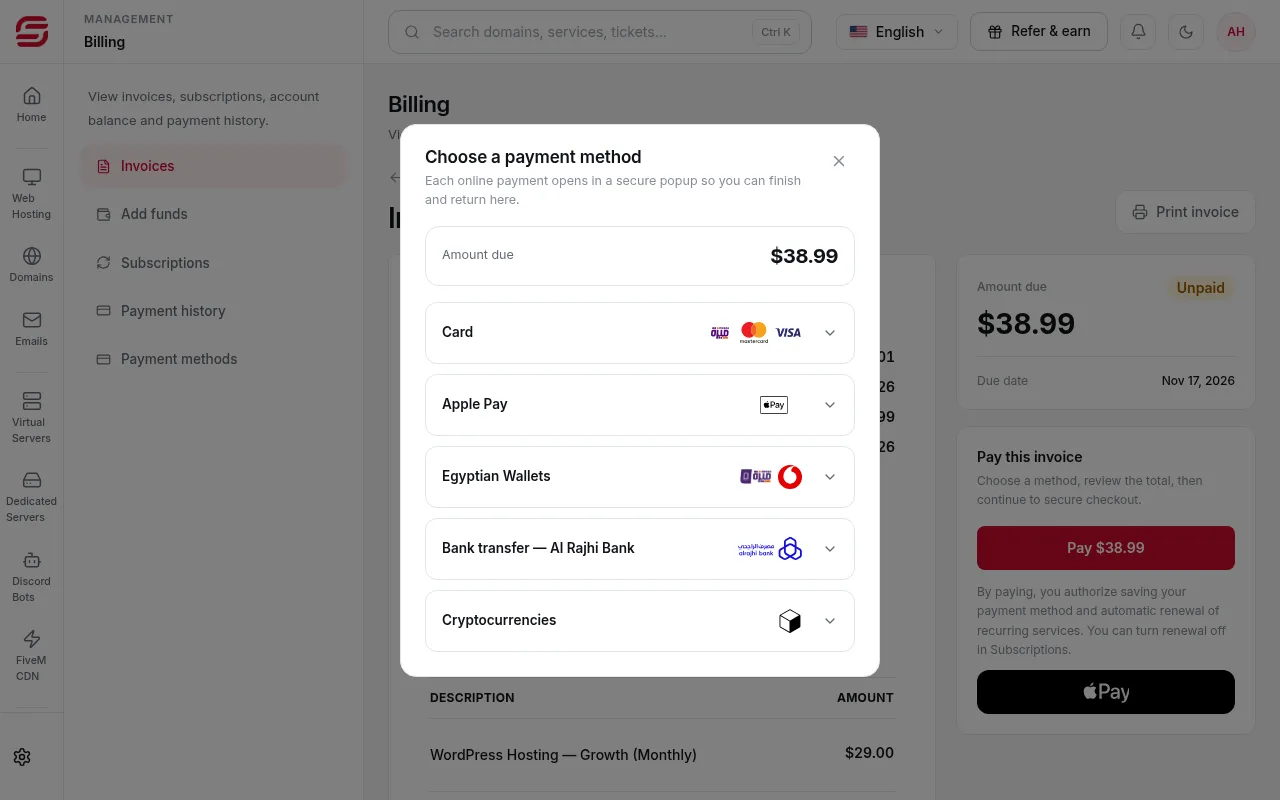
After pressing Pay, the Choose a payment method window lists: Card (Visa, Mastercard, Meeza), Apple Pay, Egyptian Wallets (Vodafone Cash, Meeza Wallet), bank transfer, and cryptocurrencies.
- 4Step 4
Paying by card
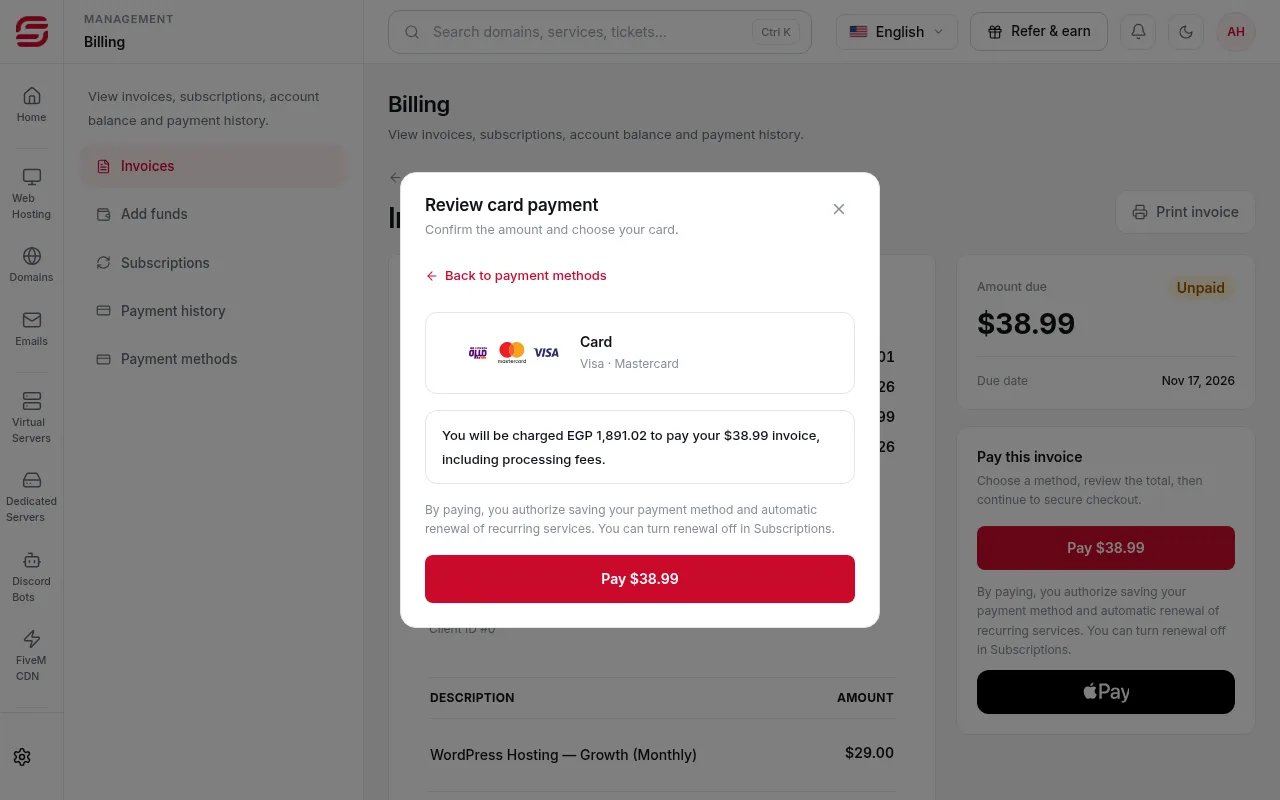
Choose Card. The window shows the amount your card will be charged in Egyptian pounds, including processing fees. This quote is valid for a limited time; if it expires, press Refresh quote. Press Pay, enter your card in Kashier's secure form, and confirm with your bank's code if asked.
 Note
SNG never stores your full card number or CVV. If you save the card, only an encrypted token is kept for payments and renewals.
- 5Step 5
Apple Pay
Press the Apple Pay button on the invoice page or in the payment methods window, then confirm with Touch ID or Face ID. It works on Apple devices with Apple Pay set up. If you see that Apple Pay is unavailable, pay by card instead.
- 6Step 6
Egyptian wallets
Choose Egyptian Wallets to pay with Vodafone Cash or Meeza Wallet, then follow Kashier's page and confirm the payment from your wallet.
- 7Step 7
Bank transfer or crypto
For a bank transfer, send the amount and upload the receipt on the invoice. For crypto, an external payment page opens where you choose the coin. Each has its own detailed guide in the control panel guides.
- 8Step 8
After paying
The page shows that your payment is being confirmed. Keep it open; it usually takes seconds and the invoice turns Paid. If it says confirmation is taking longer, do not pay again. Refresh the invoice later, and contact support if you were charged and it did not update.
Important
- Paying by card or Apple Pay can save the payment method and turn on automatic renewal for recurring services. You can turn renewal off any time in Billing → Subscriptions.
- If it says the payment was received but could not be recorded automatically, send support the transaction ID.
- Available account credit is applied automatically to new invoices.
Steps didn't work for you? Our support team is available around the clock.