
Paying by bank transfer and uploading the receipt
Transfer the invoice amount to SNG's bank account, then upload the receipt so your service activates after review.
A bank transfer is reviewed by the billing team, so it takes longer than a card payment.
- 1Step 1
Open the bank transfer window
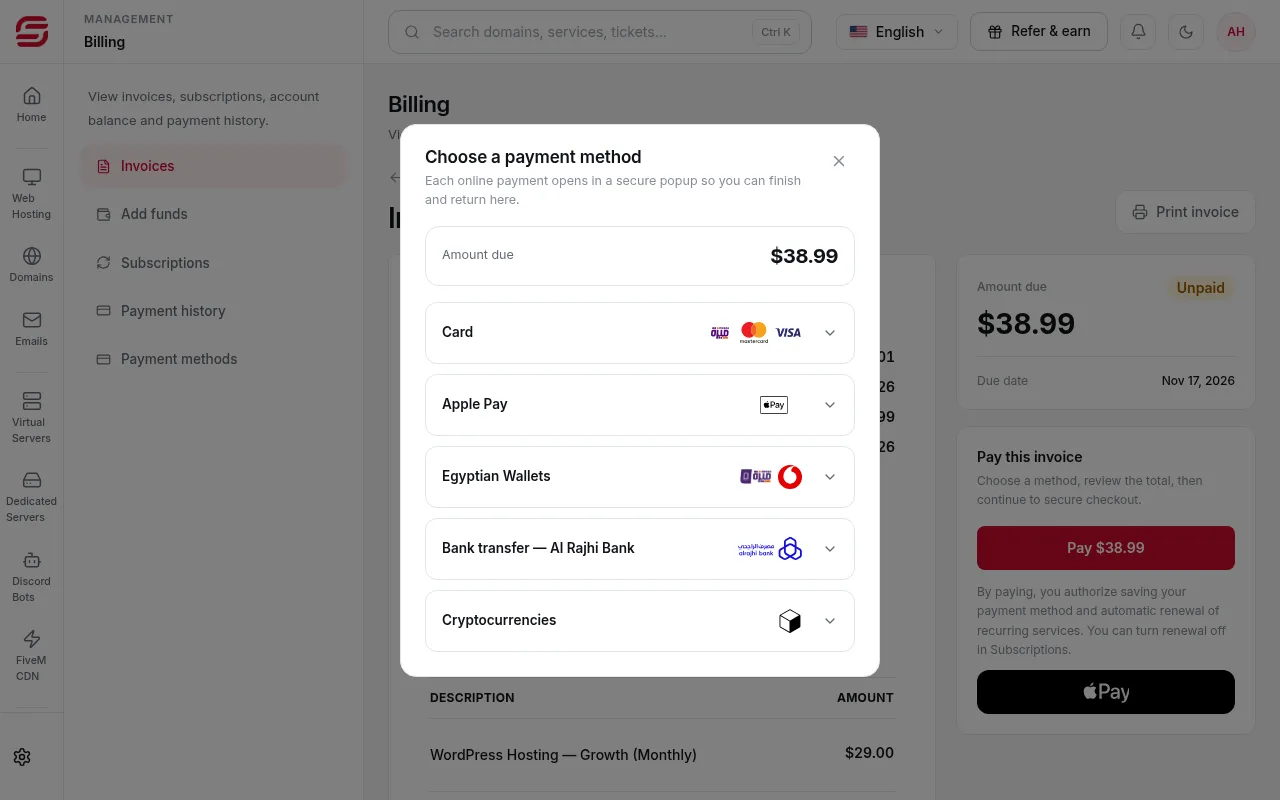
On the invoice page press Pay, then choose the bank transfer. The Submit bank transfer window opens.
- 2Step 2
Copy the transfer details
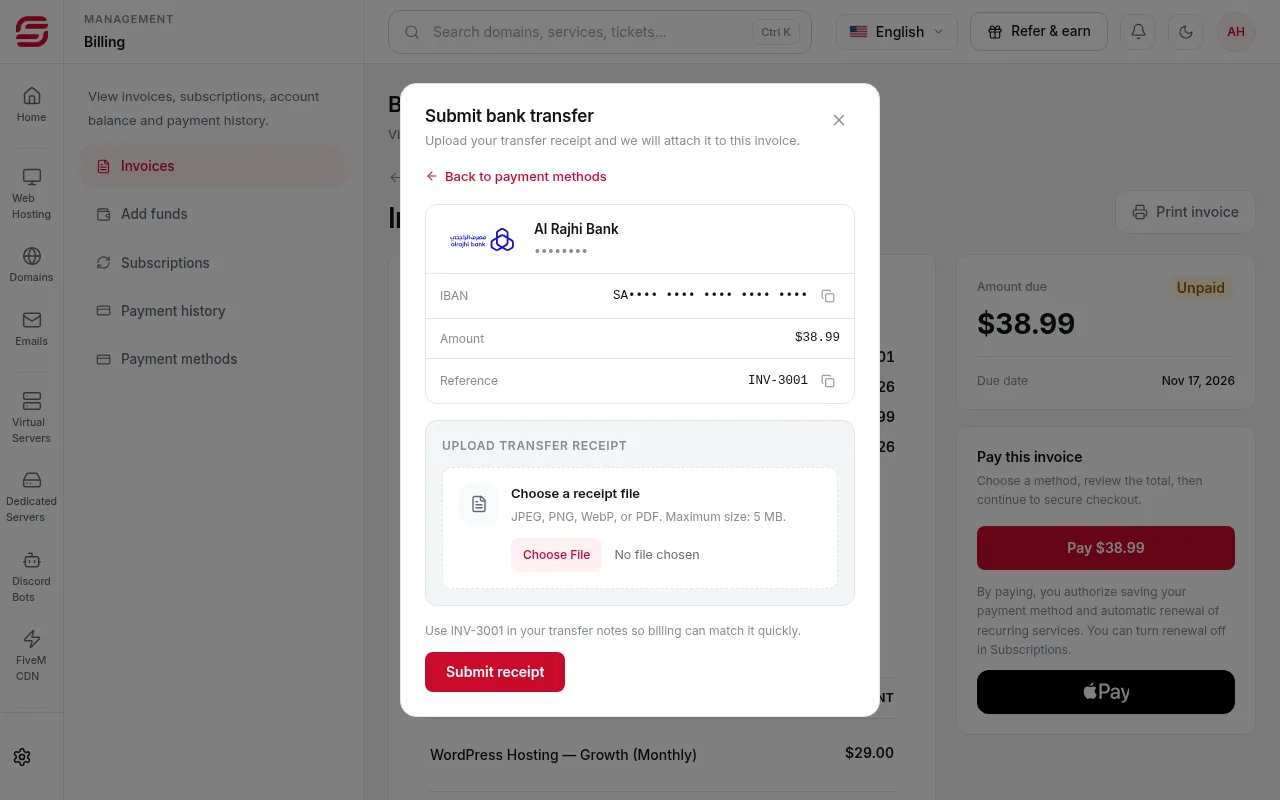
The window shows the bank, the IBAN, the amount and the invoice reference (such as INV-3001). Use the copy button next to each value so nothing is mistyped.
 Note
The account details are hidden on purpose in this screenshot. Always use the details shown on your own invoice.
- 3Step 3
Transfer the amount with the reference
Transfer exactly the amount shown, and put the invoice reference in the transfer notes so billing can match it quickly.
- 4Step 4
Upload the receipt
Under Upload transfer receipt, choose a picture or file of the receipt (JPG, PNG, WebP or PDF, under 5 MB), then press Submit receipt.
- 5Step 5
Wait for the review
The invoice shows that the receipt was received and is awaiting review. Once the transfer is confirmed, the invoice turns Paid and the service activates.
Common problems
- Receipt rejected: open the invoice and upload a correct, readable receipt.
- An earlier receipt is awaiting review: you cannot upload a new one until the first review finishes.
- The payable amount changed: check the new amount on the invoice before submitting the receipt again.
- If the upload fails, upload the same receipt again. It will not be recorded twice.
Steps didn't work for you? Our support team is available around the clock.