
First steps with a new VPS: connecting by SSH or Remote Desktop
Where to find the IP address and password, how to connect from Windows, Mac or a phone, and what to do first after signing in.
After payment the server is set up automatically within minutes. Its details are emailed to you and shown in the control panel.
- 1Step 1
Follow the setup
After payment, a page shows that the new operating system is being prepared and updates by itself. You can close it safely; setup continues in the background. When it finishes, it says your server is ready and the details are emailed to you.
- 2Step 2
Find the IP address and sign-in details
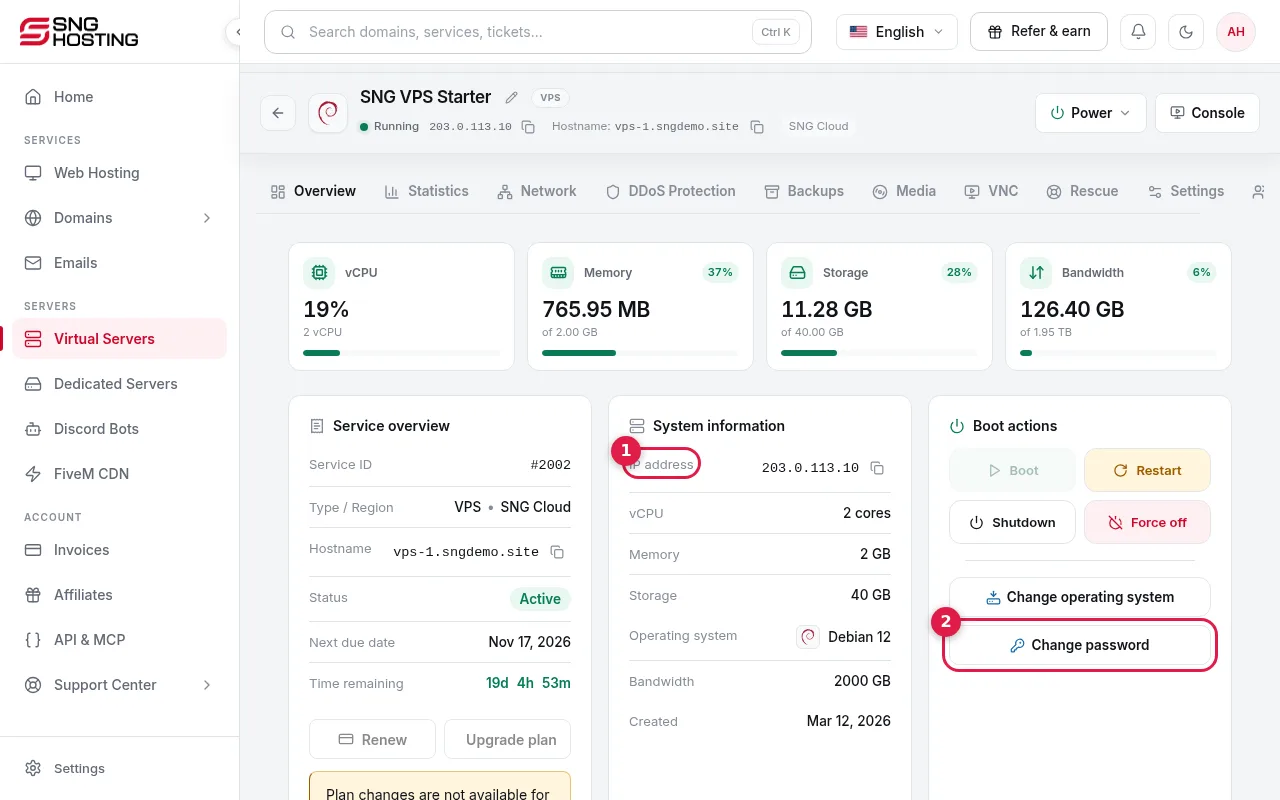
Open Servers → your server. Under System information you will find the IP address (1) with a copy button. The username is root on Linux and Administrator on Windows, and the password is in the email. If you cannot find it, press Change password (2) to create a new one.
- 3Step 3
Linux server: connect by SSH
On Windows 10 or 11 open PowerShell or Terminal; on a Mac open Terminal. Type ssh root@your-IP and press Enter. On the first connection type yes to accept the server fingerprint, then paste the password (it stays invisible while you type, which is normal). On a phone, use an app such as Termius.
- 4Step 4
Windows server: Remote Desktop (RDP)
On Windows open Remote Desktop Connection (search for mstsc), enter the IP address, then the username Administrator and the password. On a Mac or phone, install Microsoft's Windows App and add the server with the same details.
- 5Step 5
What to do first
Update the system (Linux: apt update && apt upgrade -y on Debian and Ubuntu; Windows: Windows Update), change the password to a strong one of your own, and open only the ports you need in the firewall.
- 6Step 6
If you cannot connect
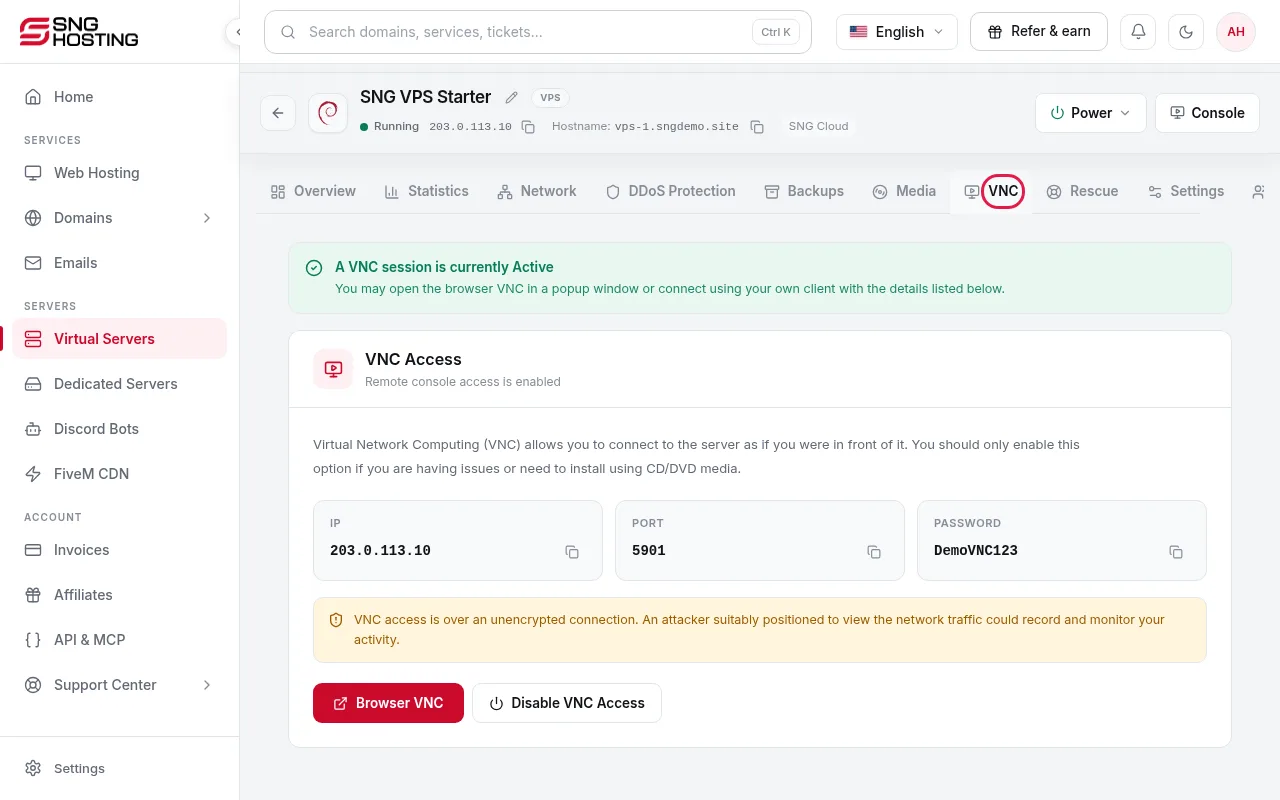
Open the VNC tab to see the server screen in your browser, and follow the Server not responding guide for the full checklist.
Useful to know
- The default SSH port is 22 and the Remote Desktop port is 3389. If you changed it, add it when connecting: ssh -p PORT root@IP, or IP:PORT in Remote Desktop.
- DDoS protection is active on your server from the start and needs no setup.
- Follow CPU, memory and disk usage in the Statistics tab.
Steps didn't work for you? Our support team is available around the clock.