
Minecraft: fix Failed to verify username
A player cannot join your Minecraft server and sees Failed to verify username? The server accepts original accounts only. Here is the fix in two minutes.
By default a Minecraft server checks that every player owns the game with a Microsoft account. Anyone playing with an unofficial launcher is refused, and the server itself is working fine.
- 1Step 1
Check that this is the problem
The player sees Failed to verify username or Invalid session in the game. On the Console page of the game panel, every attempt adds a line such as: Username tried to join with an invalid session.
NoteIf the message is Outdated client or Outdated server, the versions do not match and this guide does not apply.
- 2Step 2
The player uses an unofficial launcher: let them in
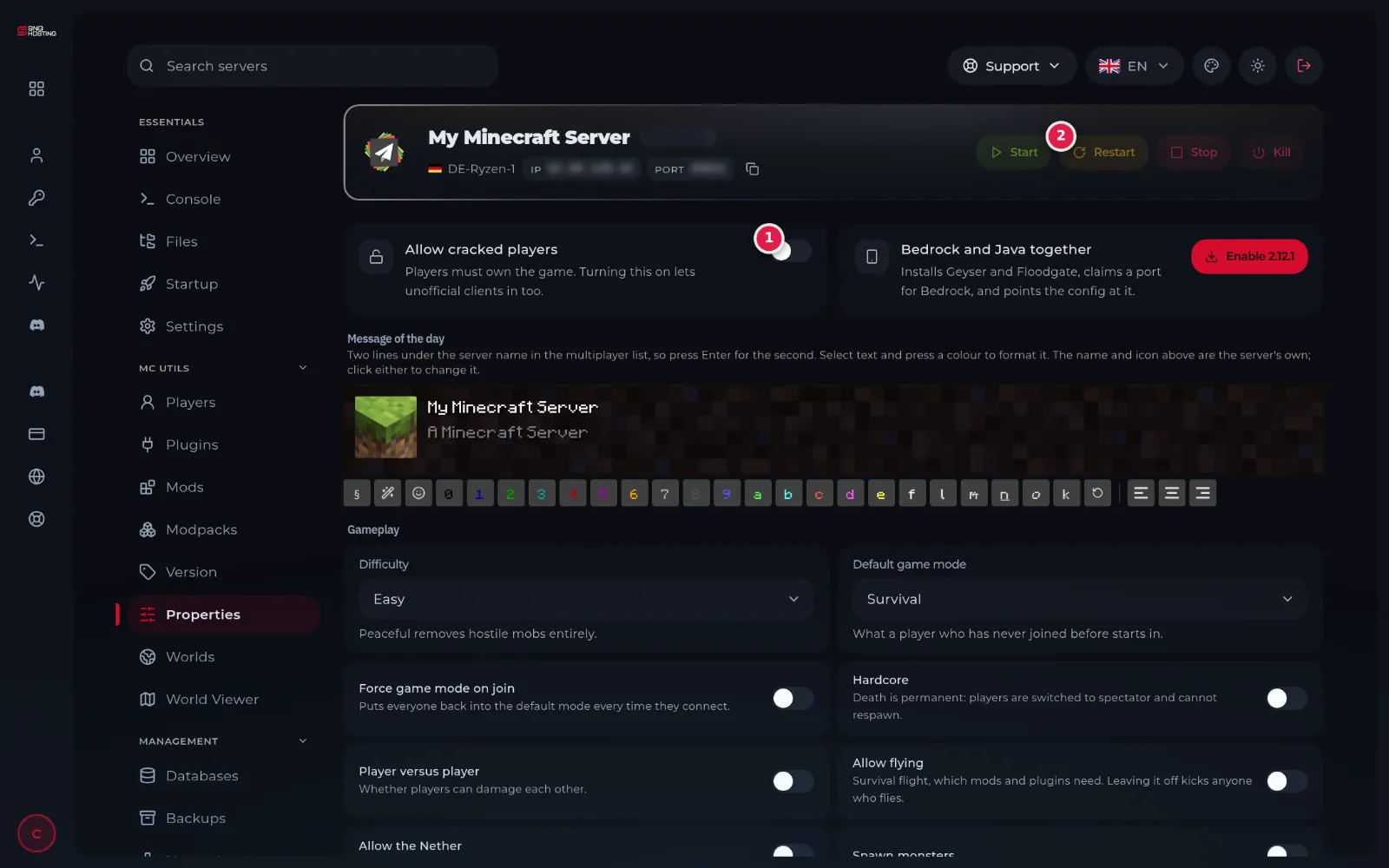
In the game panel menu choose Properties under MC Utils, then turn on Allow cracked players (1).
- 3Step 3
Restart the server
Press Restart (2) at the top of the page. The change only works after a restart, and this is the step people forget most. After it the player joins normally.
NoteTo check: after the start, the Console shows the line SERVER IS RUNNING IN OFFLINE/INSECURE MODE.
- 4Step 4
The player has an original account: sign in again
Change nothing on the server. The player closes the game and the official launcher completely, signs out and back in with the Microsoft account, then tries again.
- 5Step 5
Protect your server afterwards
With the option on, anyone who knows the address can join under any name, even yours. Turn on the whitelist: on the Console page type whitelist on, then whitelist add followed by the name of each player you allow.
NotePublic servers on Paper use a password login plugin instead of a whitelist.
Before you change the option
- Changing the option on a server that already has players makes everyone start with a new inventory and progress, because the server identifies players differently. Choose the mode at the start and take a backup before changing it.
- Player skins may not show once the option is on.
- Players with original accounts can still join while the option is on.
- Still not solved? Open a ticket from the control panel and attach the log link from the Share log button.
Steps didn't work for you? Our support team is available around the clock.