
Startup settings and reinstalling a game server
Changing the game's settings on the Startup page, and renaming or reinstalling the server on the Settings page.
The Startup page holds the settings the server reads on every start, such as the version, player count and keys. The Settings page has the server's name and the reinstall button.
- 1Step 1
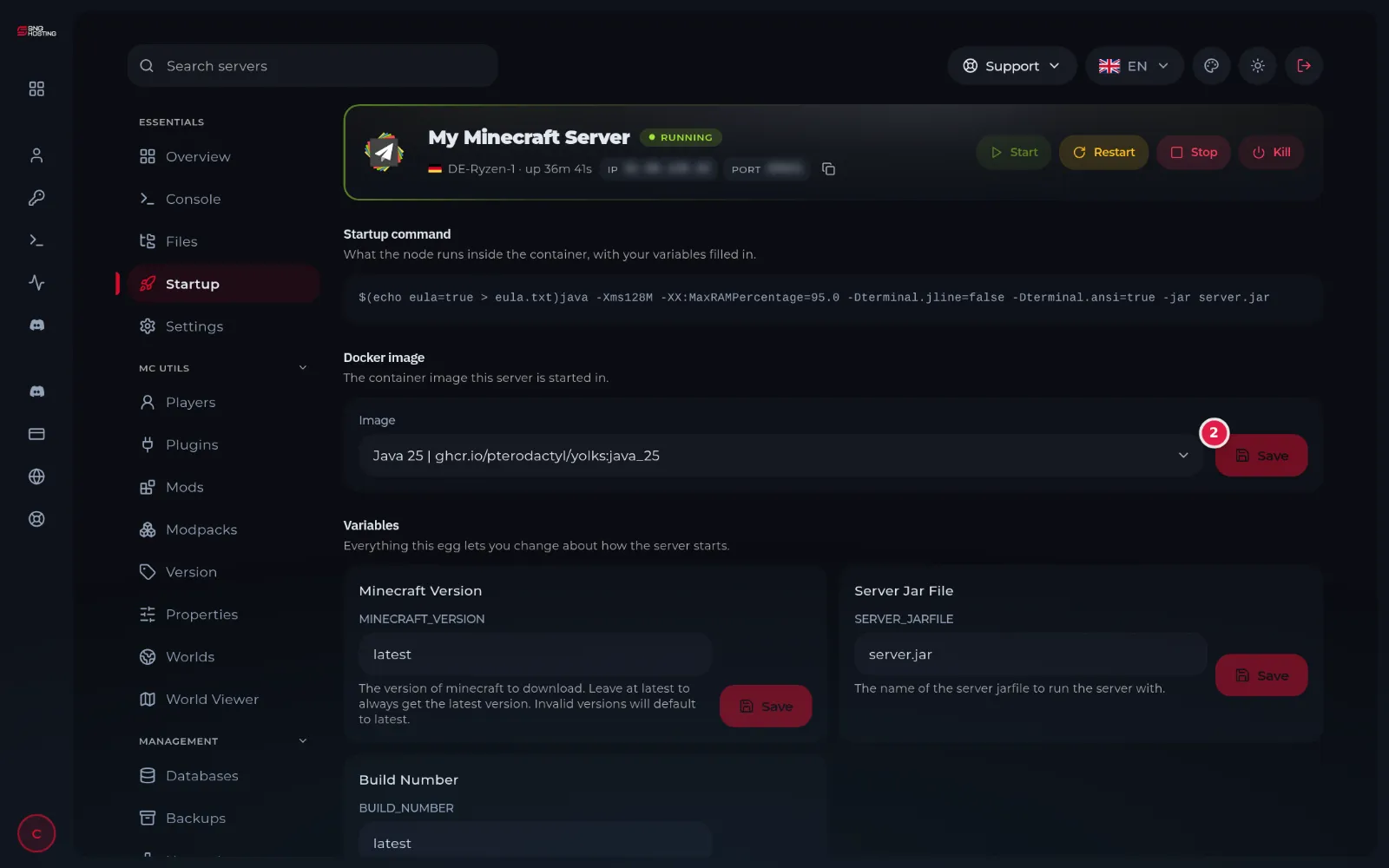
Open Startup
In the game panel menu choose Startup. The Variables section lists each setting with an explanation.
- 2Step 2
Change a setting and save
Type the new value in the setting's box and press Save (2) next to it. The settings differ by game: game version, player count, server name, licence key and so on.
NoteThe change applies after you restart the server from the Console page.
- 3Step 3
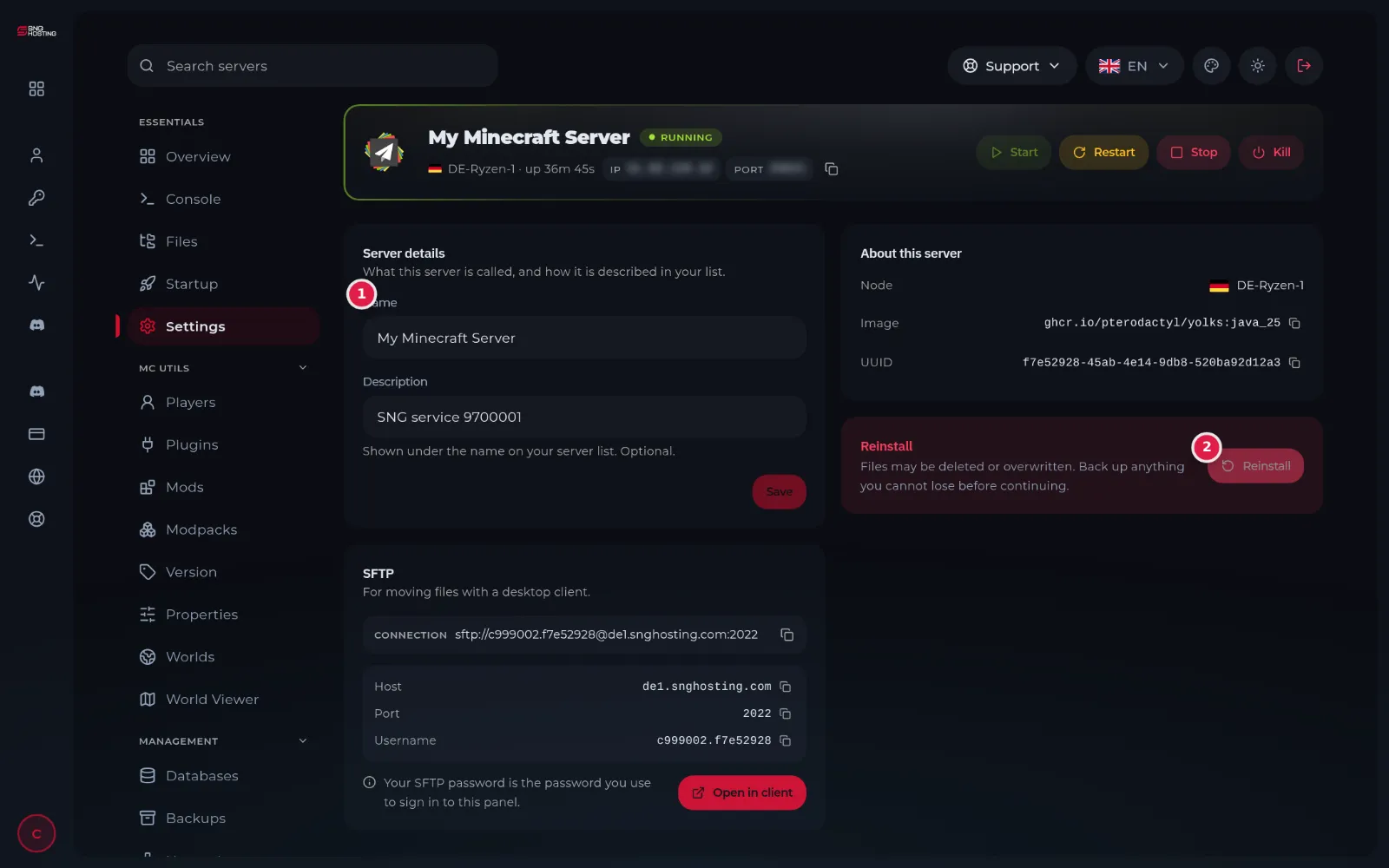
Rename the server
In the menu choose Settings, edit the Name box (1) and press Save. This name is shown in your panel only.
- 4Step 4
Reinstall when needed
Reinstall (2) downloads the game's base files again. It helps when files are damaged or the first install failed.
NoteReinstalling can delete or overwrite your files. Take a backup first.
Notes
- Do not change settings you do not know; a wrong value can stop the server from starting.
- For Minecraft, change the software and version on the Version page: it is easier and safer.
Steps didn't work for you? Our support team is available around the clock.