
Invoices, invoice statuses and payment history
What each invoice status means, how to print your invoice, and where to see every payment you made.
All invoices and payments are in the Billing section of the control panel.
- 1Step 1
Your invoices
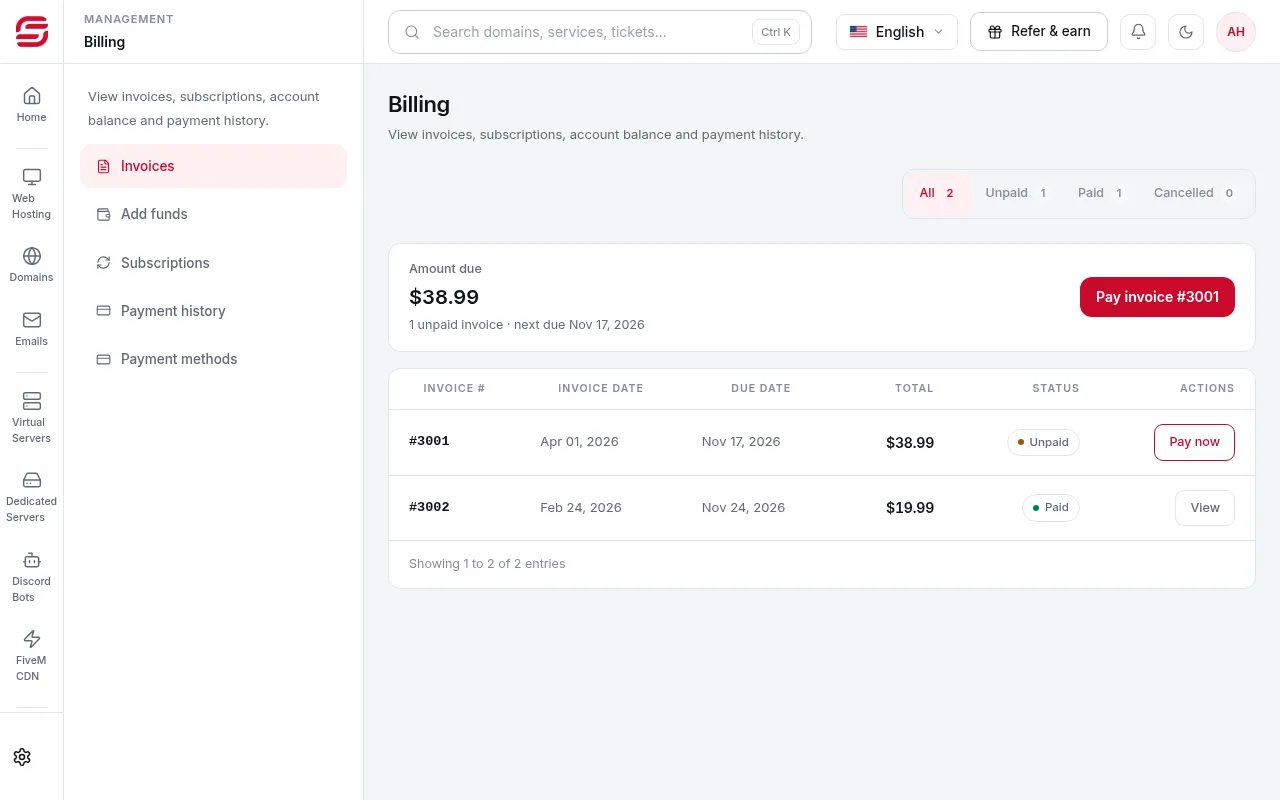
In Billing → Invoices you see every invoice with its date, due date, total and status. Use the filters: All, Unpaid, Paid, Cancelled.
- 2Step 2
What the statuses mean
Unpaid: not paid yet. Overdue: past the due date, and the service may be suspended. Paid, Cancelled and Refunded mean what they say. Pending activation: paid, and the service is being prepared. Receipt rejected: the bank transfer receipt needs to be uploaded again.
- 3Step 3
Print or save as PDF
Open the invoice and press Print invoice. In the print window you can choose to save it as a PDF.
- 4Step 4
Payment history
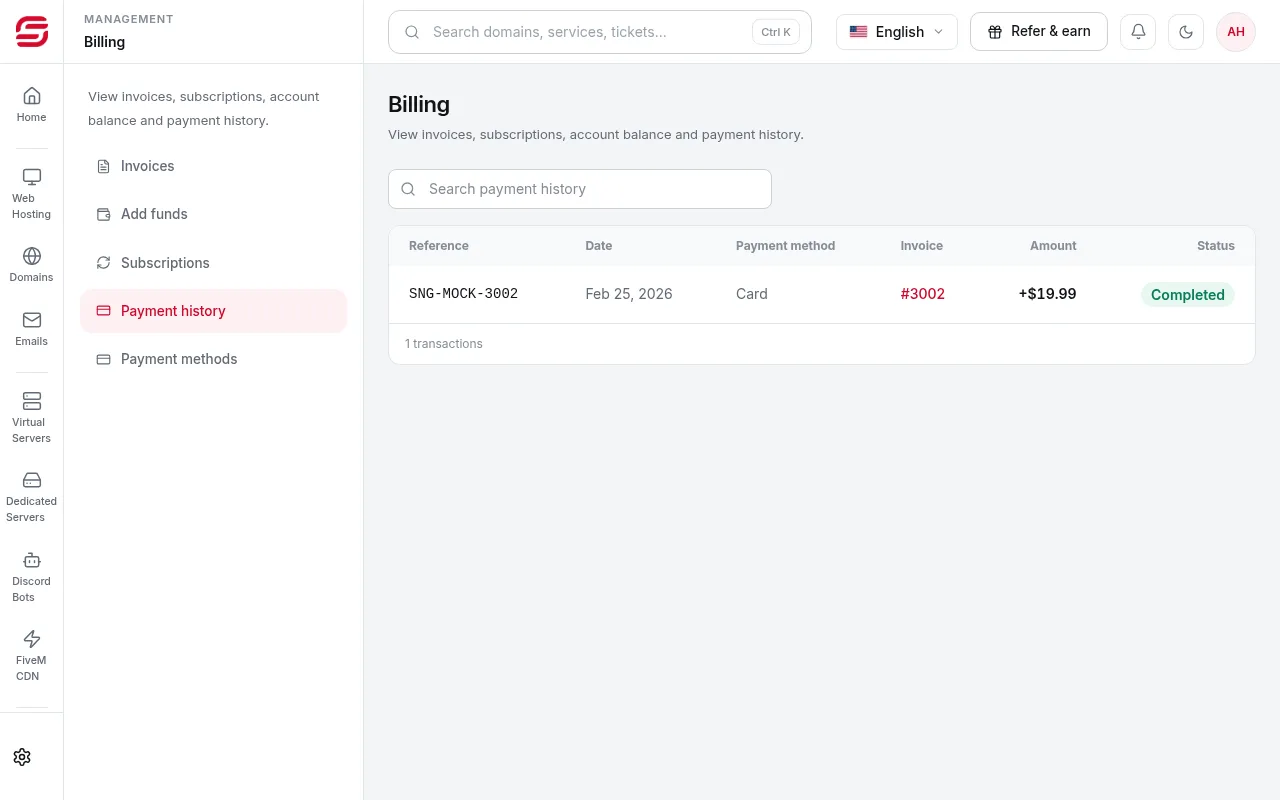
In Billing → Payment history you see every transaction: reference, date, payment method, invoice, amount and status. You can search the history.
Account balance
- Your account balance is shown in Billing and is applied automatically to new invoices.
Steps didn't work for you? Our support team is available around the clock.