
Installing WordPress on your hosting
Install WordPress on your domain with one click from the SNG control panel, through Softaculous.
WordPress is installed with Softaculous in cPanel, which opens straight from the SNG control panel with no password.
- 1Step 1
Open WordPress
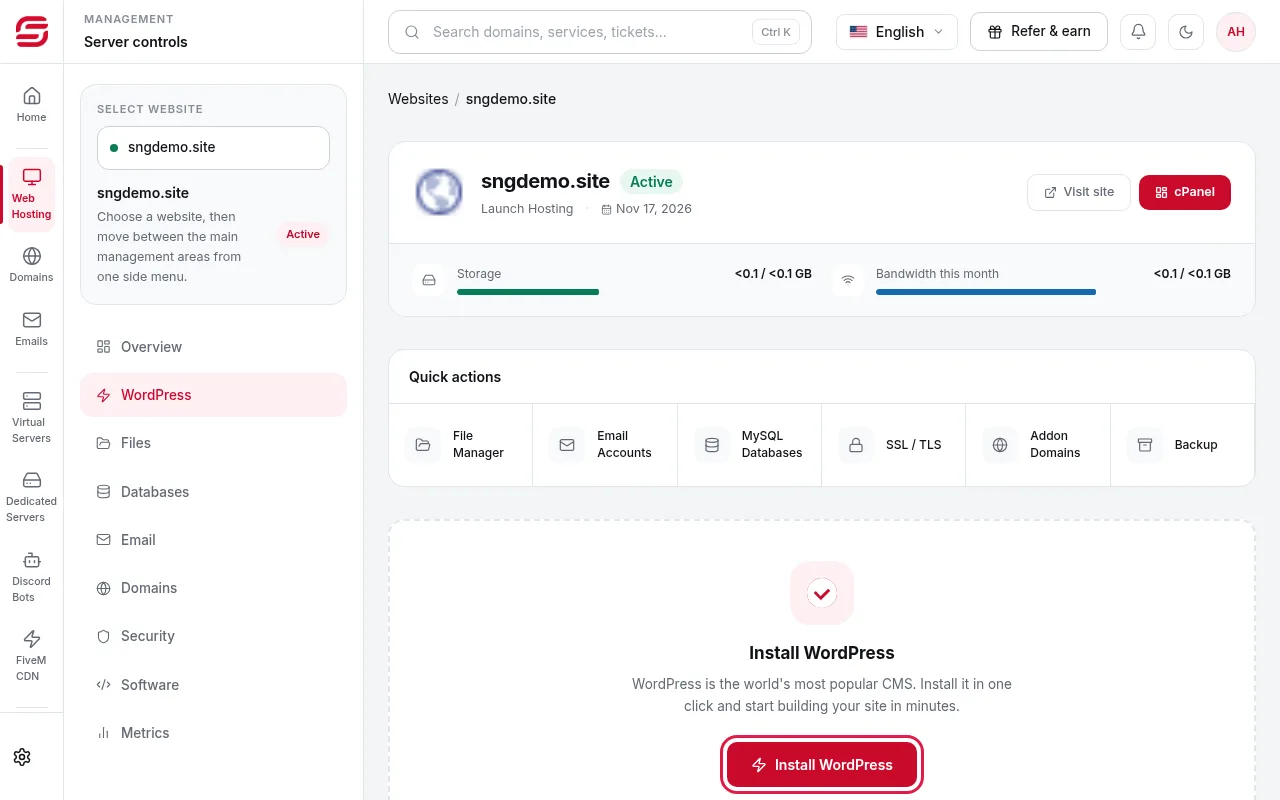
In Web Hosting → your website, choose WordPress in the side menu, then press Install WordPress. Softaculous opens in a new tab.
- 2Step 2
Choose the domain and path
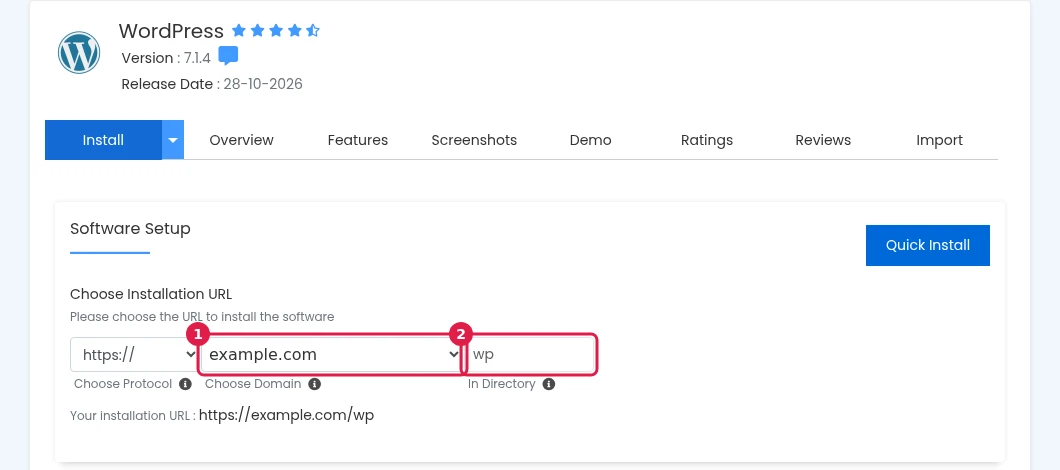
Press Install Now. Under Choose Installation URL pick https:// and your domain in Choose Domain (1). Delete wp from In Directory (2) and leave it empty, so the site opens on the domain itself and not on your-domain/wp.
- 3Step 3
Enter the site and admin details
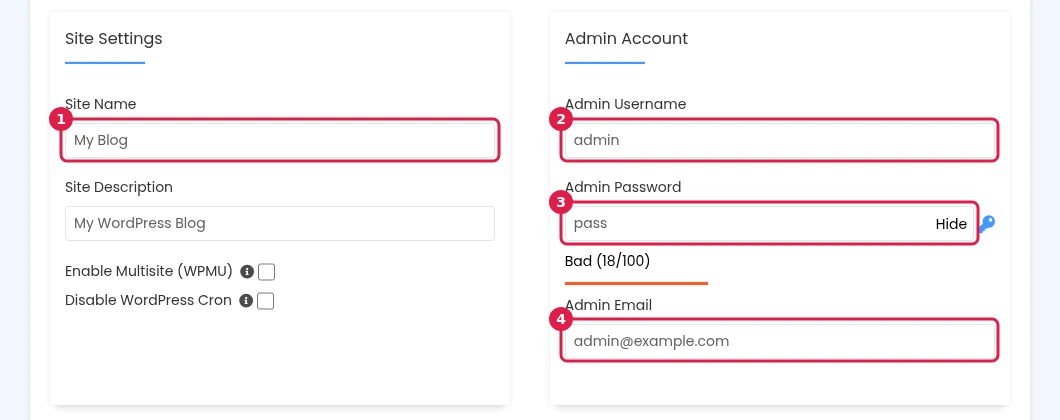
Type the site name (1) and description, then an admin username (2), a strong password (3) and your email (4). Do not use admin as the username or keep the default password. Keep these details safe.
- 4Step 4
Choose the language and install
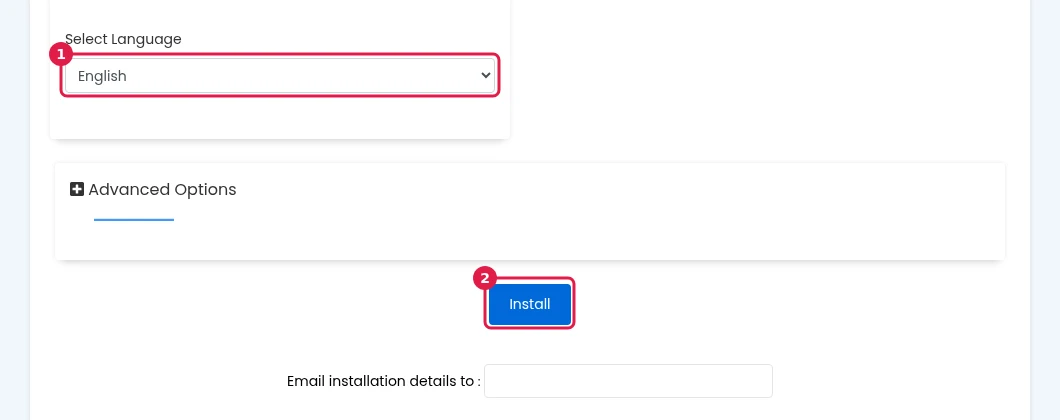
Choose the site language in Select Language (1), then press Install (2) at the bottom of the page and wait for it to finish.
- 5Step 5
Sign in to WordPress
When it finishes, the admin link is shown (your-domain/wp-admin). Sign in with the username and password you chose.
After installing
- In the SNG panel, the WordPress tab shows the WordPress version, themes and plugins, and opens the update and backup tools.
- Turn on SSL so the site works on https.
Steps didn't work for you? Our support team is available around the clock.