
Opening the game panel and starting your server
From the control panel to the game panel in one click, then start the server and copy its address for your players.
You enter the game panel straight from your SNG account. There is no separate password for the game panel.
- 1Step 1
Open Game Servers
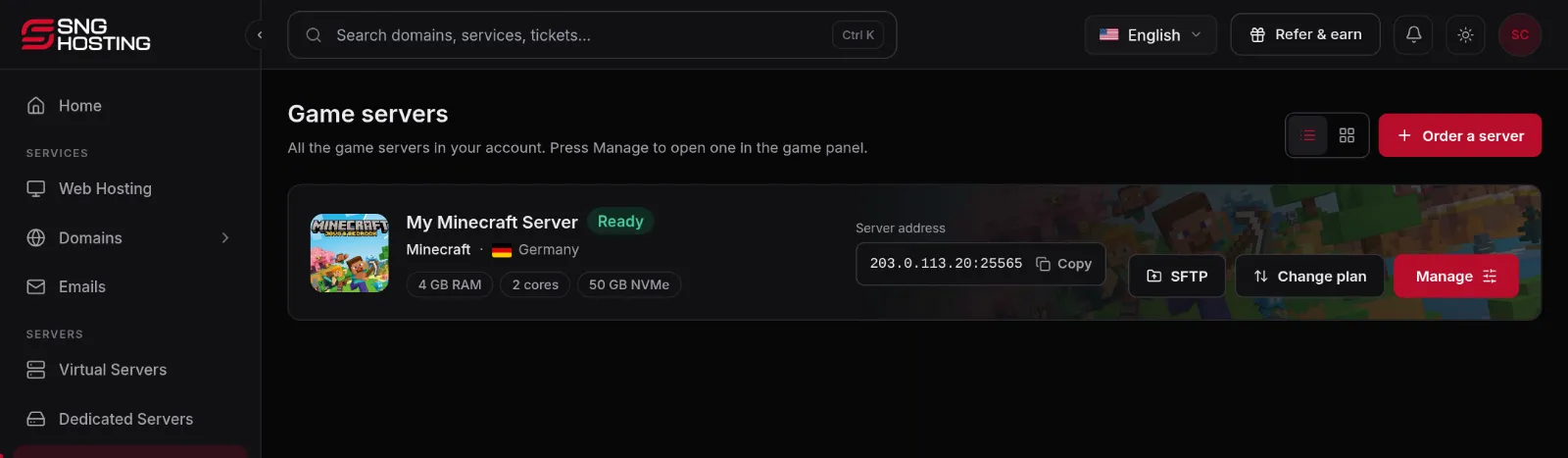
In the control panel at cp.snghosting.com choose Game Servers from the menu. Each server shows its game, location, size and address, with a button to copy it.
- 2Step 2
Press Manage
The Manage button opens the server in the game panel, already signed in.
- 3Step 3
Start the server
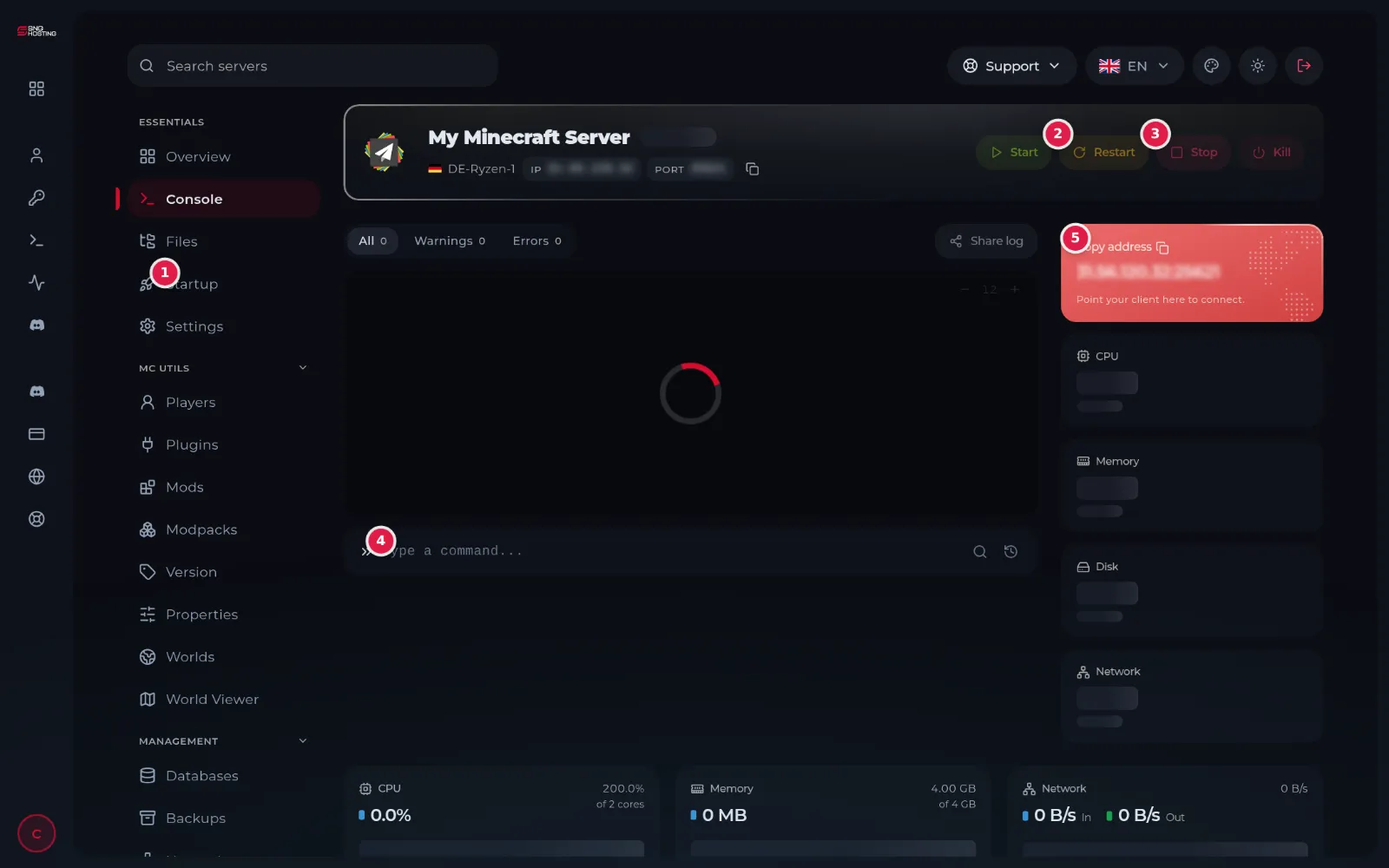
Press Start (1) and watch the console. The server is ready when the state next to its name turns to RUNNING. Restart (2) restarts it and Stop (3) shuts it down safely.
- 4Step 4
Copy the address and join from the game
Press Copy address (5) to copy the server address: the IP, a colon, then the port. Paste it into the game as it is and give it to your players.
NoteEnter the whole address, with the number after the colon. Without it the game cannot find your server.
Some games need one step from you first
- FiveM: txAdmin opens with it and asks for the free licence key. See the guide on setting up FiveM with txAdmin.
- Hytale: the first start shows a link and a code in the console so you can sign in with your Hytale account.
- Farming Simulator 25 and Don't Starve Together: put your key or token in the Startup page before starting.
Steps didn't work for you? Our support team is available around the clock.