
The file manager of a game server
Uploading mods and maps, editing config files in the browser, and making or deleting folders.
The Files page gives you full access to your server's files from the browser, with no extra program.
- 1Step 1
Open Files
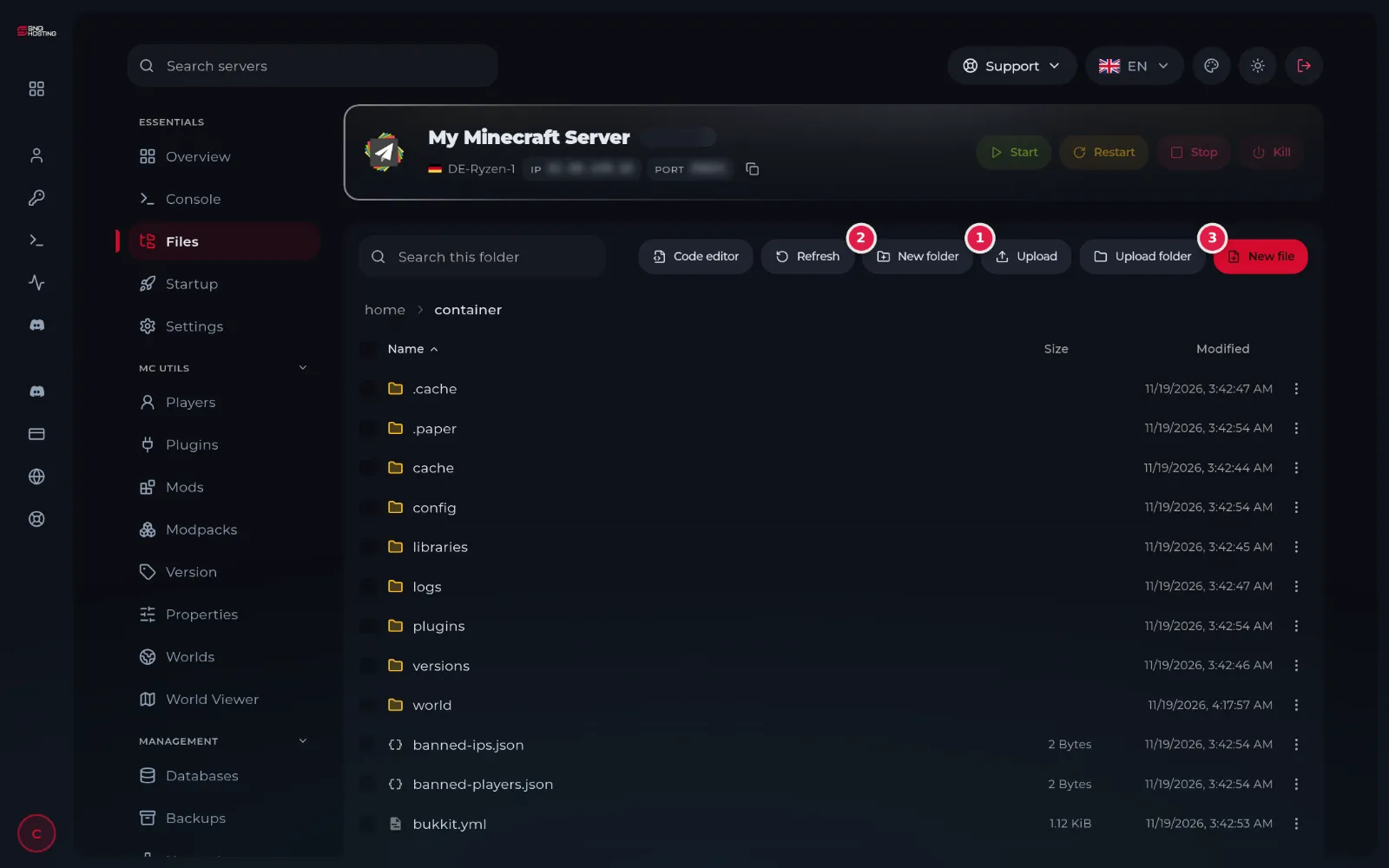
In the game panel menu choose Files. You see the server's folders and files; click a folder to enter it.
- 2Step 2
Upload a file
Enter the folder you want first, then press Upload (1) and choose the files from your computer. From the browser the limit is 100 MB per file.
NoteFor bigger files use SFTP: see the guide on uploading large files over SFTP.
- 3Step 3
Edit a config file
Click any text file to open it in the editor, change it and save. New folder (2) makes a folder and New file (3) makes a new file.
- 4Step 4
Rename, move, download or delete
The three dots at the end of each row open a menu: Rename, Move, Copy, Compress (into one archive), Download (to your computer) and Delete.
Tips
- Stop the server before replacing world or database files, then start it.
- To upload a whole folder use Upload folder, or zip it, upload it and unarchive it from the three-dot menu.
- Take a backup before any big change.
Steps didn't work for you? Our support team is available around the clock.