
Uploading large files over SFTP
Your server's SFTP details and a password from the control panel, then connecting with a program such as FileZilla or WinSCP.
The file manager in the browser takes up to 100 MB per file. For large mods and worlds use SFTP with a file-transfer program.
- 1Step 1
Open the SFTP window
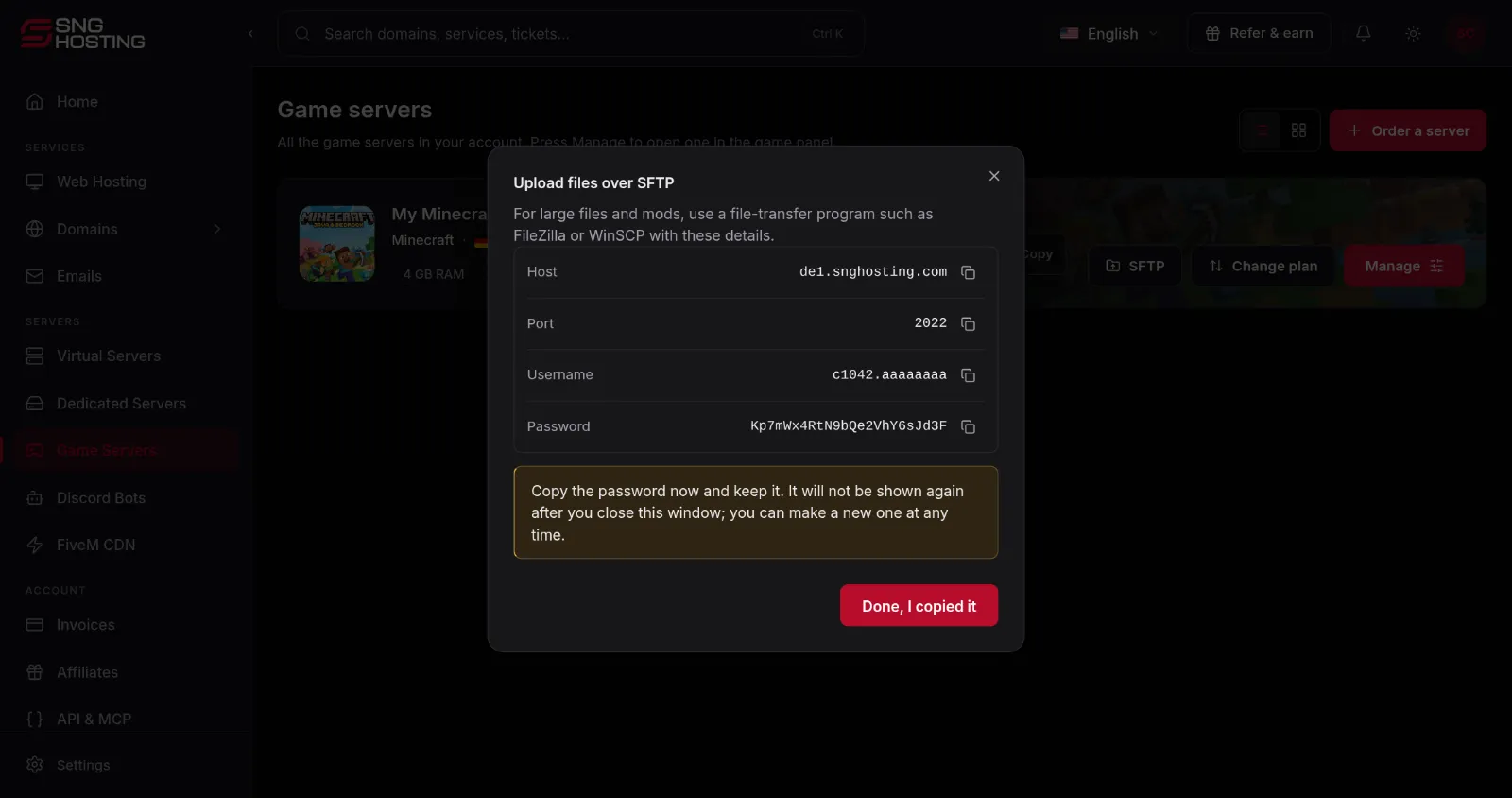
In the control panel open Game Servers and press the SFTP button on the server. It shows the host, the port and the user name, each with a copy button.
- 2Step 2
Create the password
Press Create a password. The password is shown once: copy it and keep it before you close the window.
NoteOne password serves all the game servers in your account, and making a new one replaces the old one. We do not store it.
- 3Step 3
Connect from the file-transfer program
In FileZilla or WinSCP choose the SFTP protocol and enter the host, port 2022, the user name and the password, then connect. On the first connection accept the server's key.
- 4Step 4
Upload your files
Drag the files from your computer into the server folder. When the upload is done, restart the server from the game panel.
If it does not connect
- Make sure the protocol is SFTP, not FTP, and the port is 2022.
- The user name differs per server (it ends with the server's id), so copy it from that server's own window.
- Forgot the password? Create a new one in the same window.
Steps didn't work for you? Our support team is available around the clock.