
Backups of a game server
Making a backup before updates and changes, and restoring or downloading it when you need it.
A backup keeps your server's files as they are at one moment. How many you can keep depends on your plan.
- 1Step 1
Open Backups
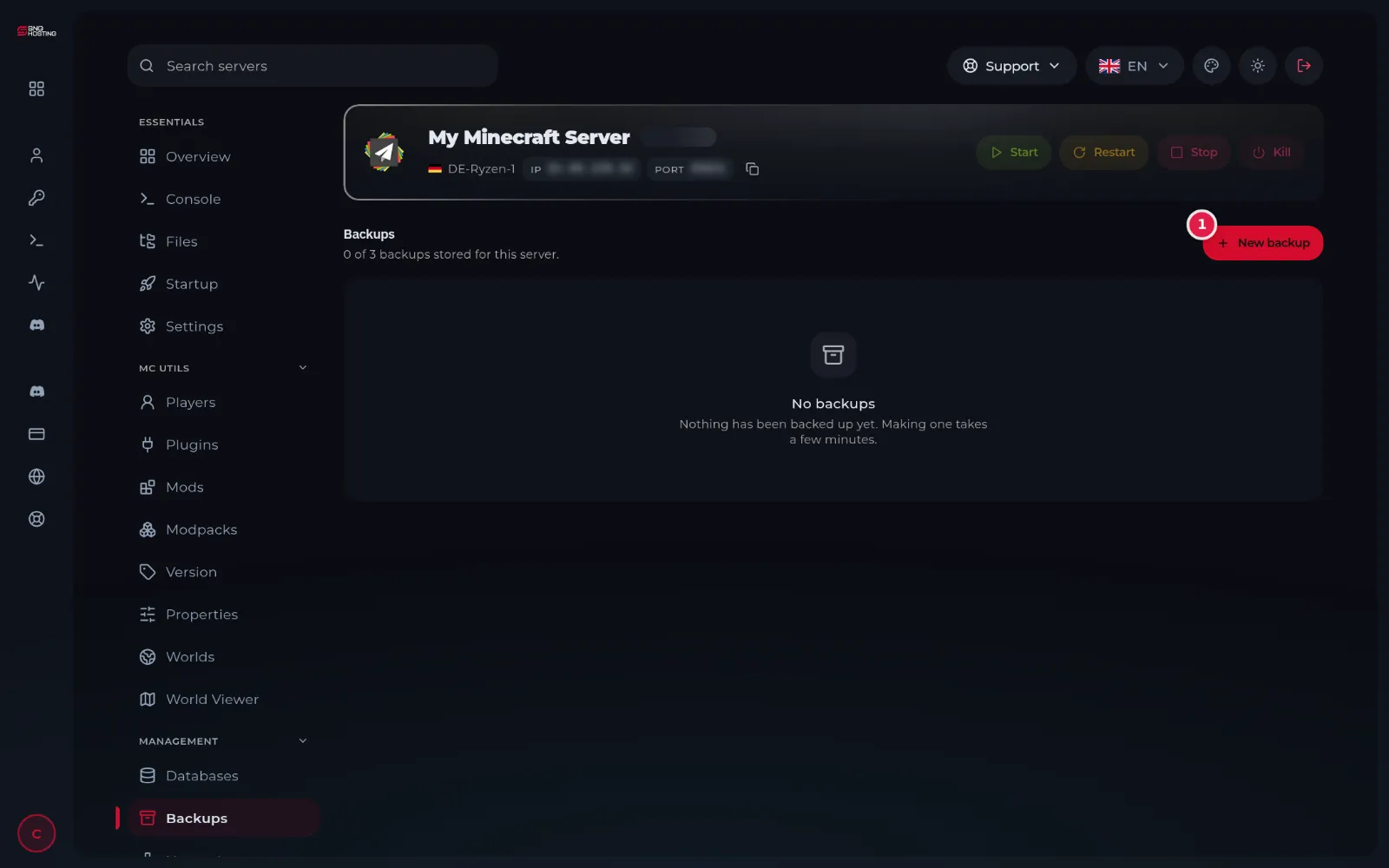
In the game panel menu choose Backups. The top of the page shows how many backups are stored out of your plan's limit.
- 2Step 2
Create a backup
Press New backup (1), type a name that reminds you why (for example Before the update) and confirm. It takes from seconds to minutes, depending on the size of the files.
- 3Step 3
Restore, download or delete
From the backup's menu you can restore it onto the server, download it to your computer, or delete it to make room for a new one.
NoteRestoring replaces the current files with the backup's files. Stop the server first.
When to take a backup
- Before changing the game version or adding many mods.
- Before reinstalling or asking to change the game.
- You can schedule an automatic backup on the Schedules page.
Steps didn't work for you? Our support team is available around the clock.