
Control panel guides4 minutes
Adding SNG Mail to Outlook, Apple Mail and your phone
Connect your mailbox to any mail app over IMAP and SMTP with the right settings for your domain.
Connection settings depend on your domain, so always copy them from the control panel.
- 1Step 1
Open Connect apps & devices
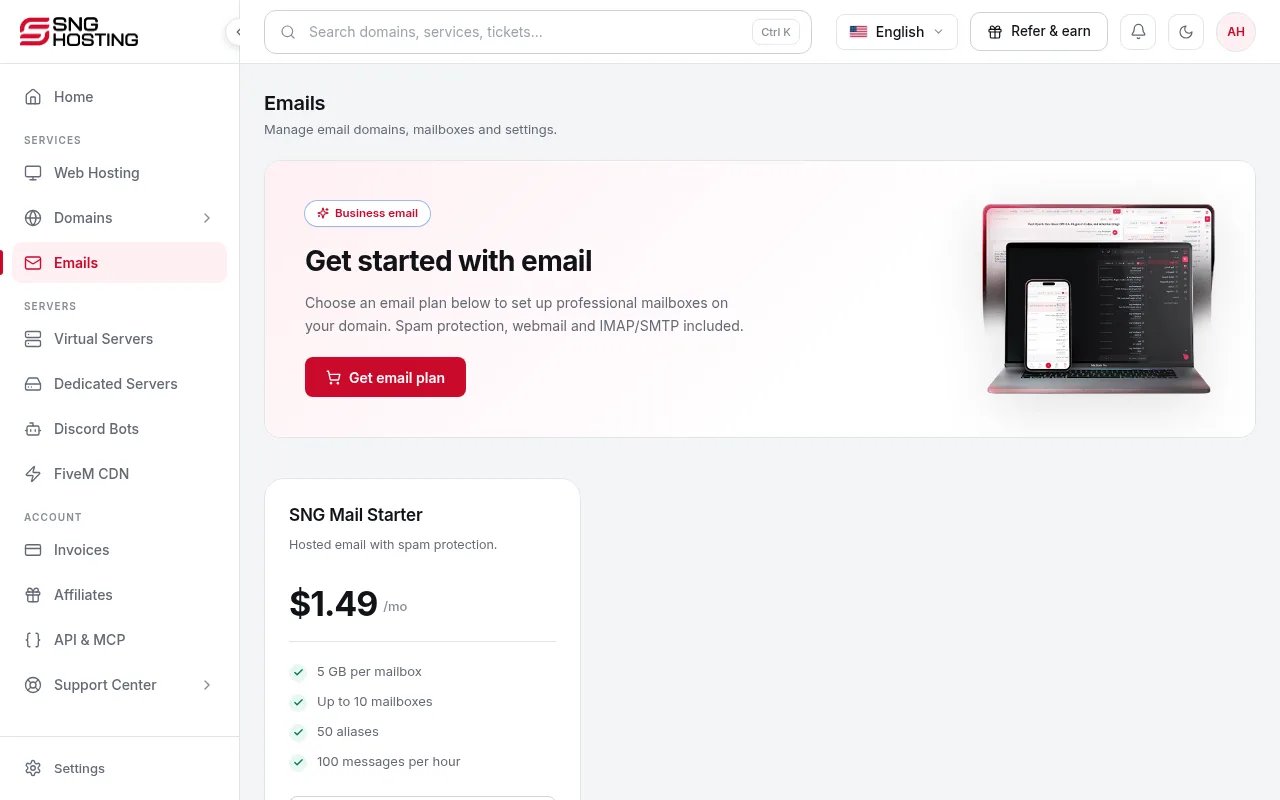
In Emails, open your domain, then Connect apps & devices. It lists the IMAP and SMTP servers, ports and encryption for your domain.
- 2Step 2
Add the account in your mail app
In Outlook, Apple Mail or your phone's mail app, choose to add an account, then manual setup (IMAP). The username is the full email address and the password is the mailbox password.
- 3Step 3
Enter the incoming and outgoing servers
Copy the IMAP server and port for incoming mail and the SMTP server and port for outgoing mail exactly as shown, and turn on the required encryption. Save, then send a test message.
If it does not connect
- Make sure the username is the full email address, not just the name.
- If you forgot the mailbox password, change it on the mailboxes page in the control panel.
- Webmail always works as a fallback.
Need help?
Contact supportSteps didn't work for you? Our support team is available around the clock.