
Domain lock, privacy protection, transfer code and owner details
Unlock your domain, request the transfer (EPP) code, hide your details in WHOIS, and edit the owner contacts.
All of a domain's ownership and security settings are on its page.
- 1Step 1
Domain lock
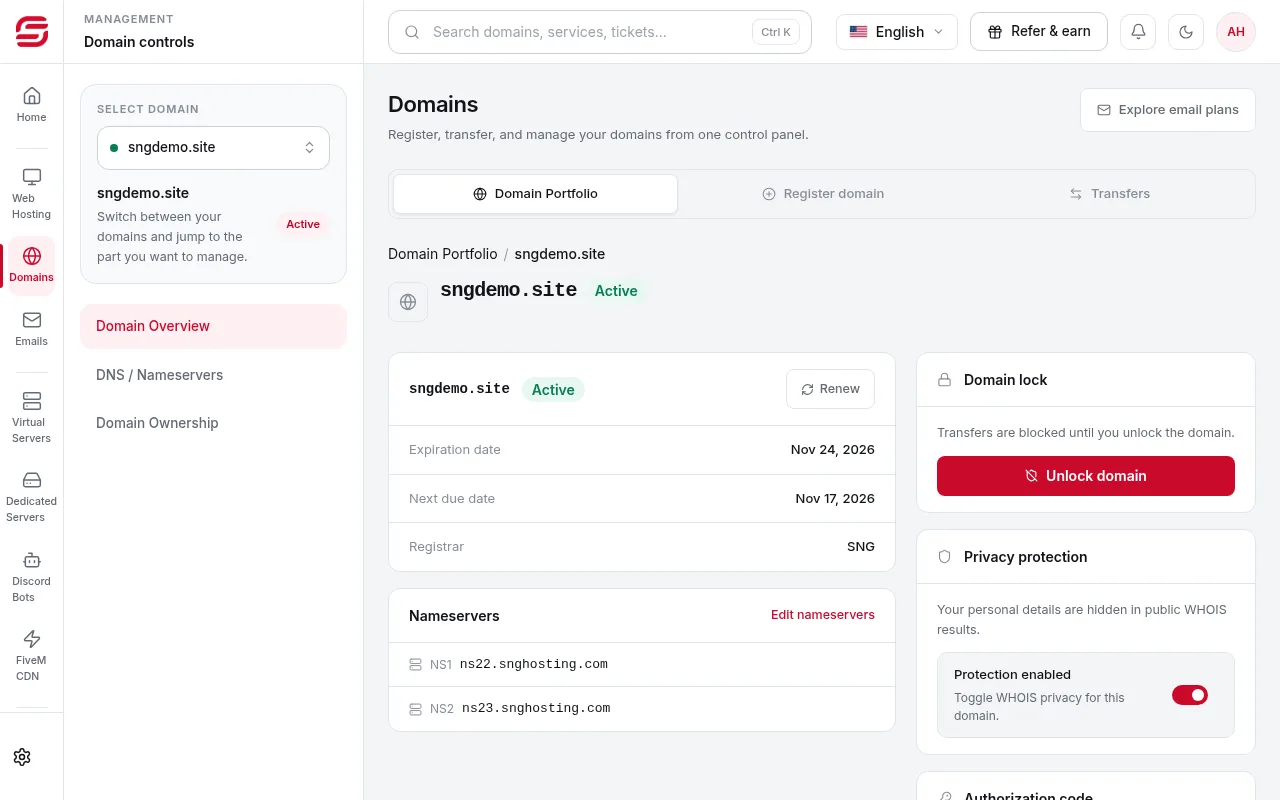
Domain Overview shows Domain lock. The lock blocks transfers. Press Unlock domain only when you want to move it to another registrar, and lock it again afterwards.
- 2Step 2
Privacy protection
Privacy protection hides your personal details from public WHOIS results. Turn it on or off on the same page.
- 3Step 3
Transfer code (EPP)
Request the code under Authorization code. It may appear directly, or the registrar may email it to the domain owner. You need it to move the domain to another registrar.
- 4Step 4
Owner details
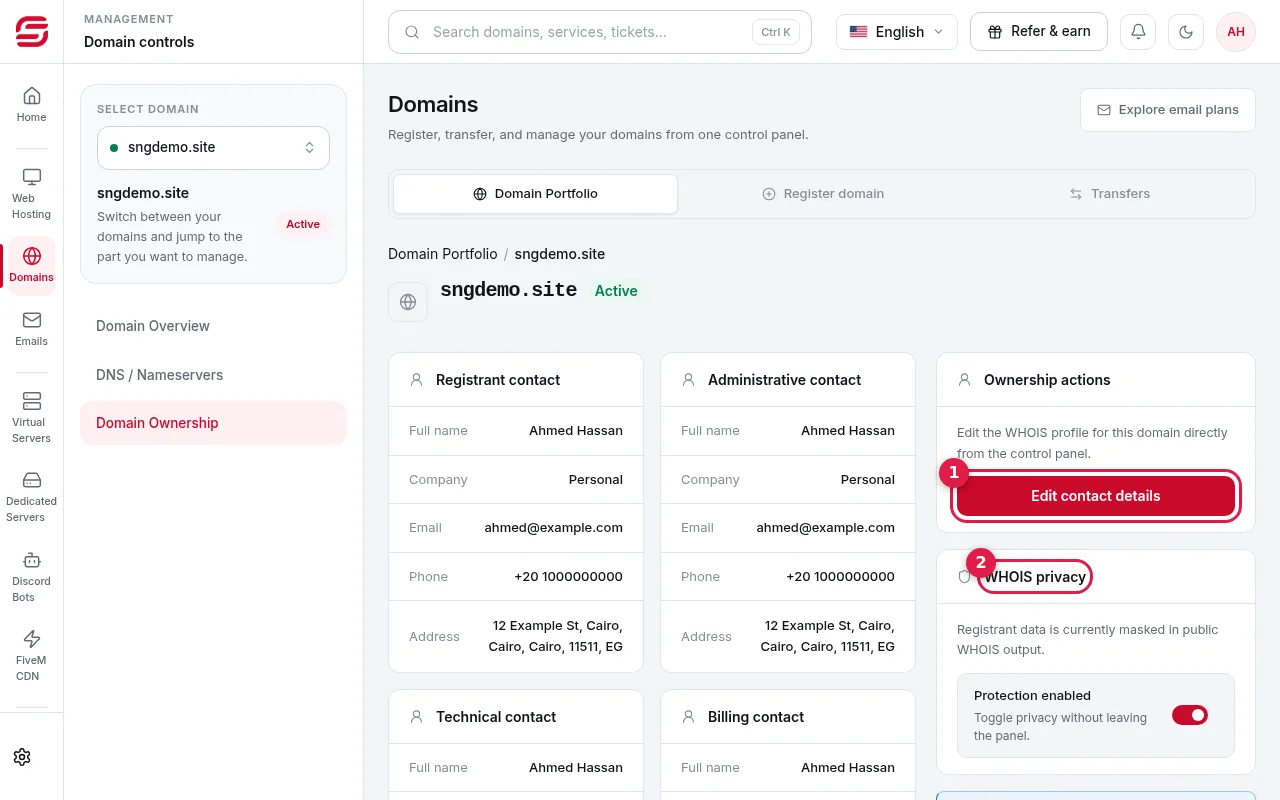
Open Domain Ownership to see the registrant, administrative, technical and billing contacts. Press Edit contact details (1) to change them; WHOIS privacy (2) controls whether they are hidden.
When editing contacts
- Use two-letter country codes such as EG or SA, and include the country code in phone numbers.
- Use an email you own and read: transfer and renewal messages go there.
Steps didn't work for you? Our support team is available around the clock.