
Changing nameservers and pointing a domain to your server
Change your domain's nameservers in the control panel, and see where to add an A record to point the domain to a VPS.
Nameservers decide who manages your domain's DNS records, and they send visitors and email to the right place.
- 1Step 1
Open the domain
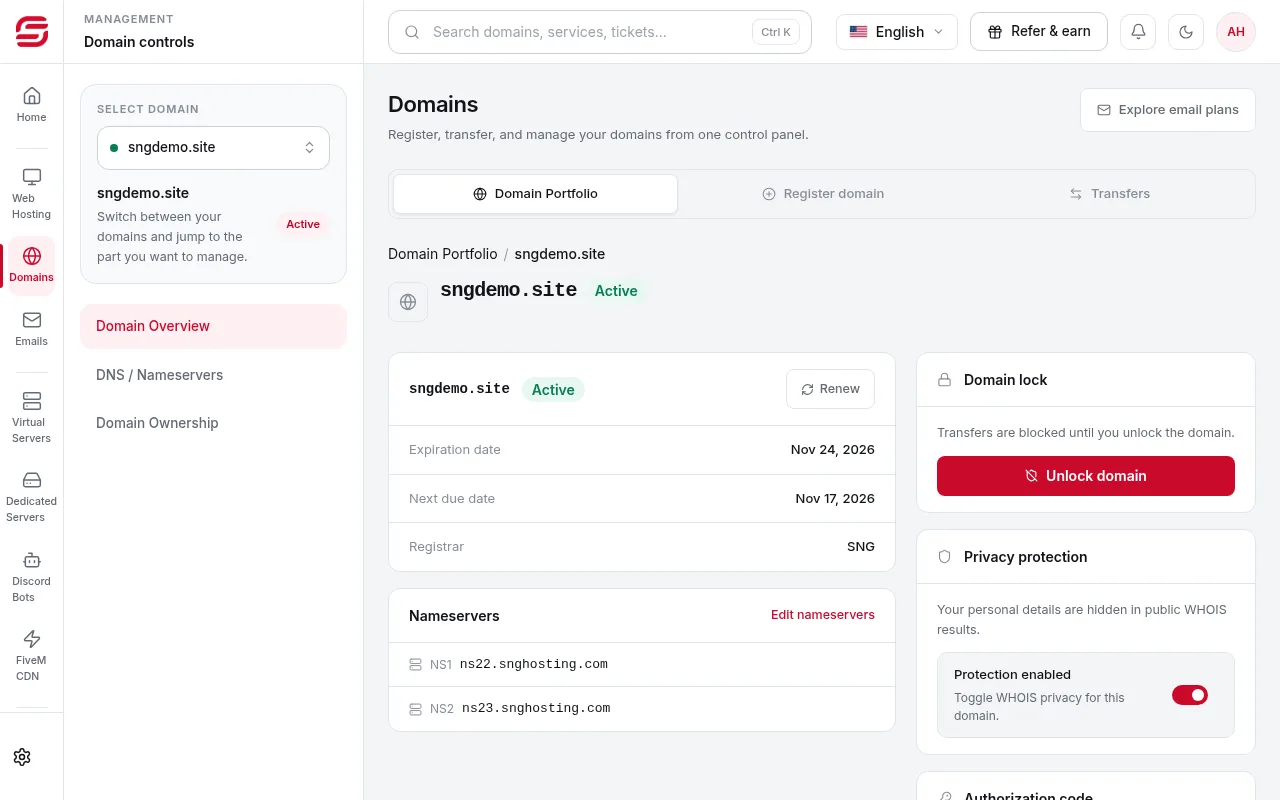
In Domains → Domain Portfolio, open your domain. Domain Overview shows the current nameservers.
- 2Step 2
Edit the nameservers
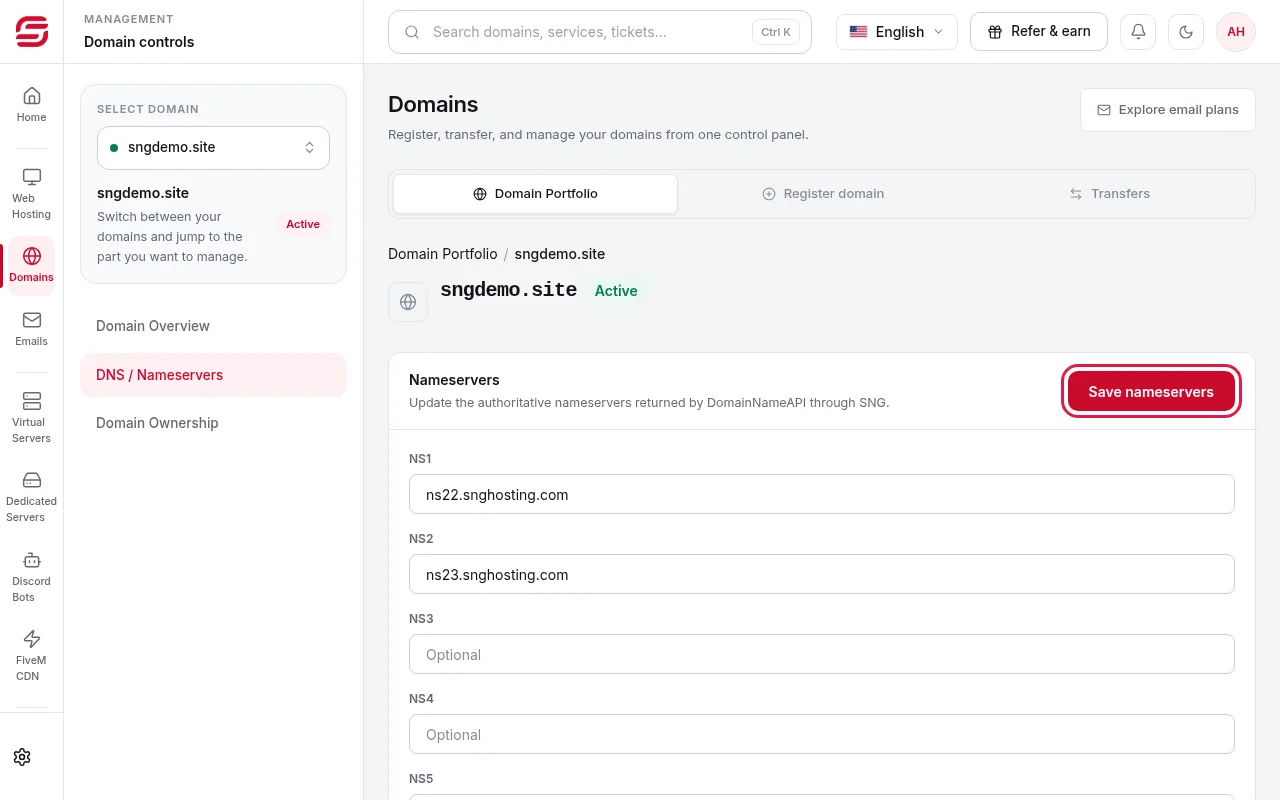
Open DNS / Nameservers, enter at least two nameservers (NS1 and NS2; the rest are optional), then press Save nameservers. The registrar's current answer is shown below.
 Note
Wrong nameservers stop both the website and email. Changes can take up to 48 hours to spread.
- 3Step 3
Connecting to SNG web hosting
If the domain is for SNG web hosting, follow the Web hosting: setting up a website and connecting a domain guide. DNS records are managed from the hosting tools.
- 4Step 4
Pointing to a VPS
At the DNS provider your nameservers point to (for example Cloudflare), add an A record with the name @ and your server's IP address as the value, plus another A record named www if you need it. The IP address is on the server page.
Common record types
- A: points a name to an IPv4 address.
- CNAME: makes one name follow another, such as www.
- MX: sets the mail server for your domain.
- TXT: verification and mail records such as SPF and DKIM.
Steps didn't work for you? Our support team is available around the clock.