
Control panel guides4 minutes
Two-step verification, passkeys and recovery codes
Protect your account with an authenticator app or a passkey, and keep recovery codes in case you lose your phone.
Two-step verification stops anyone from entering your account even if they know your password.
- 1Step 1
Open the security settings
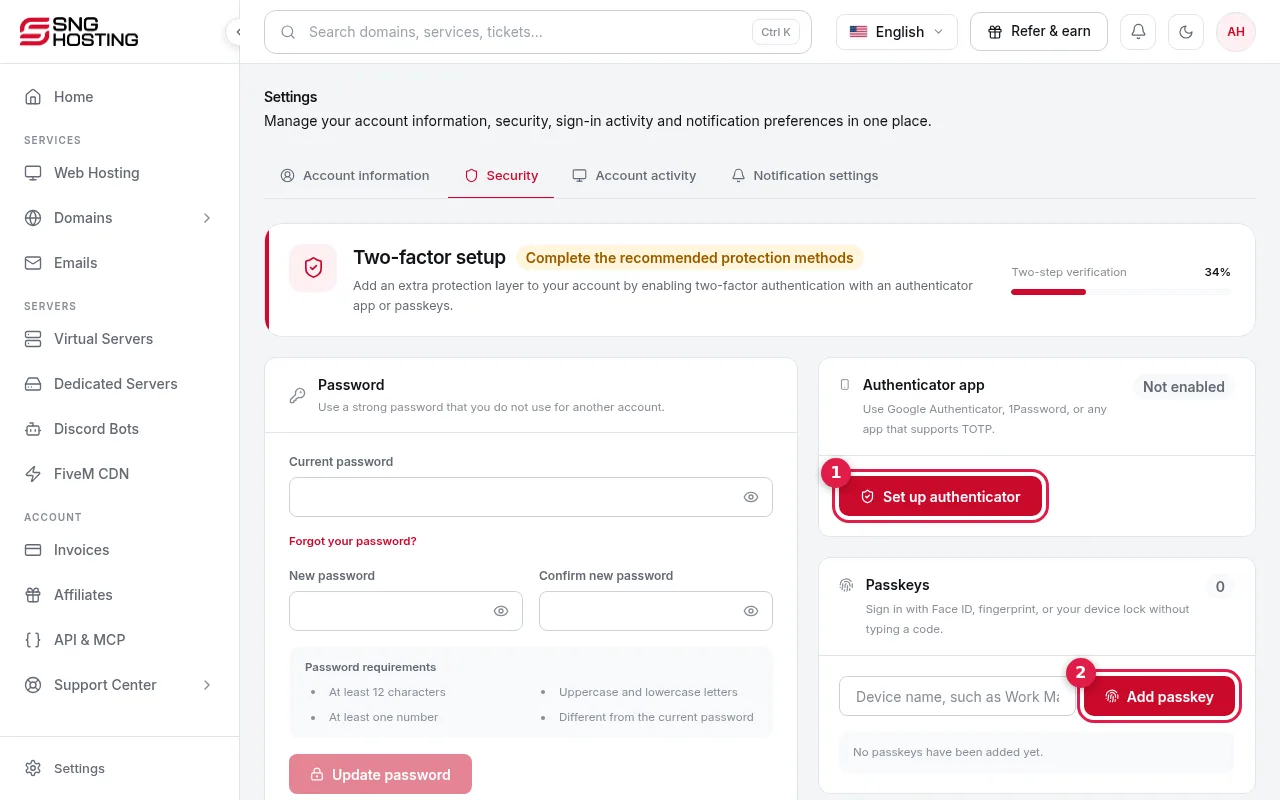
Go to Settings → Security → Two-step verification. You will find Set up authenticator (1) and Add passkey (2).
- 2Step 2
Authenticator app
Works with Google Authenticator, 1Password or any TOTP app. Scan the QR code, then enter the 6-digit code to confirm.
- 3Step 3
Passkeys
Sign in with Face ID, a fingerprint or the device lock, without typing a code. You can add several devices.
- 4Step 4
Save your recovery codes
You get ten codes and each works once. Store them away from your phone. Creating new codes cancels all the old ones immediately.
If you lose your phone
- At sign-in, use a recovery code or choose to receive a code by email. It goes to the account email, so keep it up to date.
- If you have no way in at all, open a support ticket and the team will verify your identity.
- Sensitive changes, such as removing a sign-in method, ask you to verify with a passkey, an authenticator code or your password.
Need help?
Contact supportSteps didn't work for you? Our support team is available around the clock.