
Control panel guides3 minutes
Forgot password: resetting and changing it
Get back into your account with a link sent to your email, or change your password in Settings.
The reset link is sent to the email you sign in with.
- 1Step 1
Press Forgot password?
On the sign-in page, press Forgot password?.
- 2Step 2
Enter your sign-in email
Enter the email you sign in with; it can differ from the billing email. The link arrives within a few minutes. If nothing arrives, check your spam folder.
- 3Step 3
Set a new password
Open the link and enter a new password: at least 12 characters, with upper- and lower-case letters and at least one number. After a reset, all devices are signed out for safety.
- 4Step 4
Change it while signed in
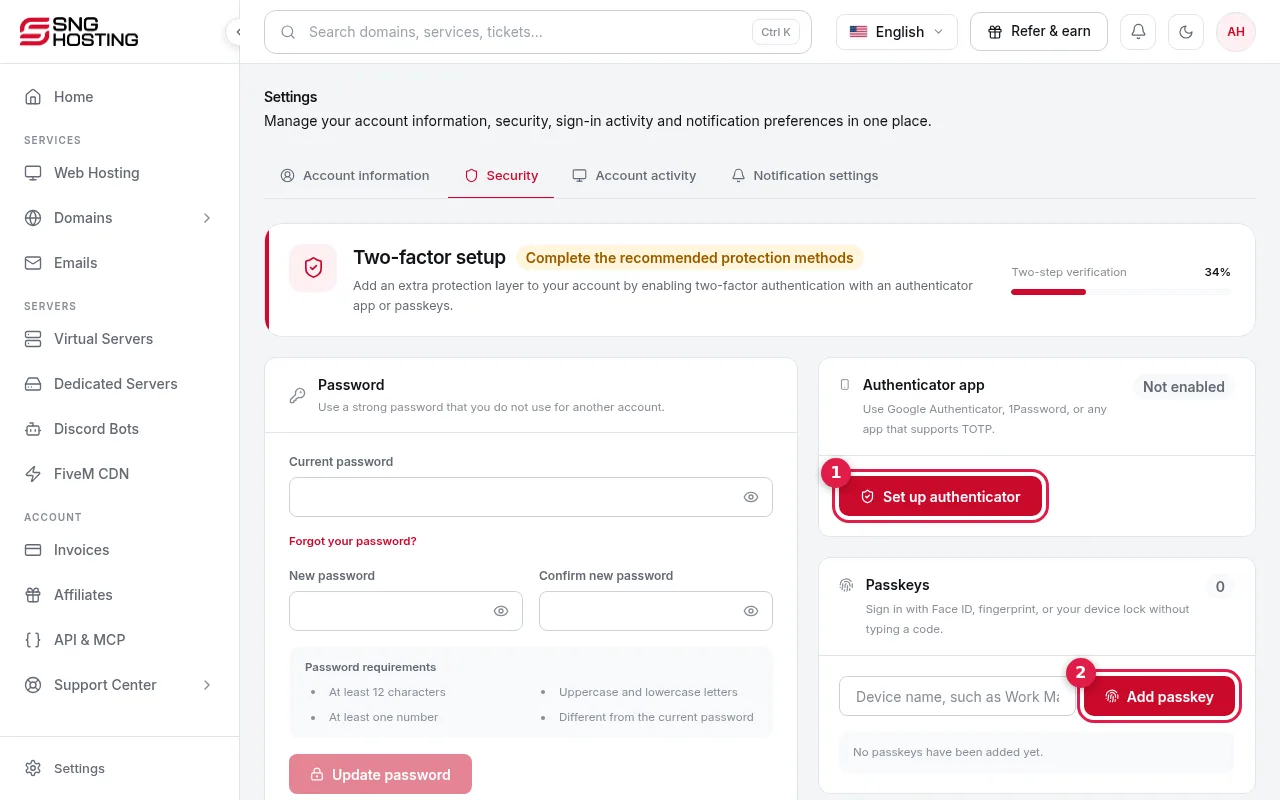
Go to Settings → Security → Password. Use a strong password that you do not use anywhere else.
Need help?
Contact supportSteps didn't work for you? Our support team is available around the clock.