
Install FiveM Server (Windows)
Guide to installing FiveM Server with txAdmin
- 1Step 1
Install XAMPP
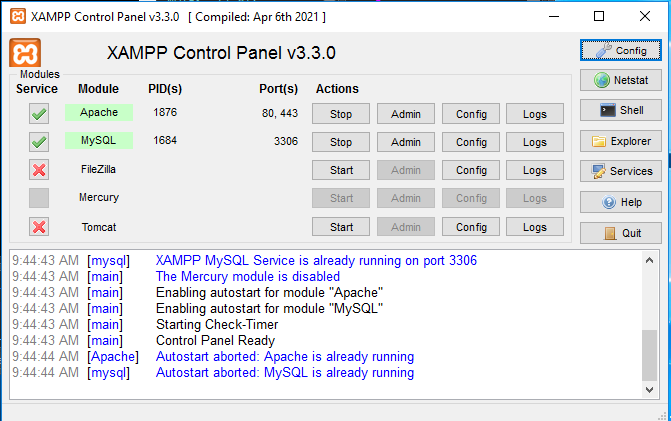
HeidiSQL is optional, you can install XAMPP only. Install XAMPP From https://www.apachefriends.org/download.html. After, open XAMPP and start 'Apache' and 'MySQL'.
- 2Step 2
Download Artifacts
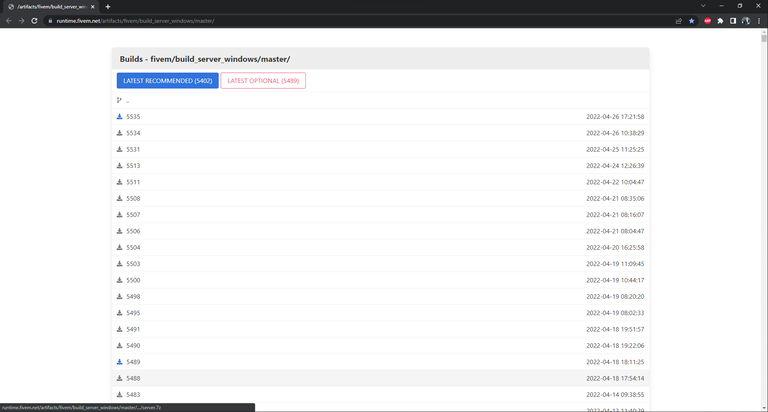
Download the 'Latest Recommended' Artifact FiveM From Here and extract them to a new folder.
- 3Step 3
Run FXServer
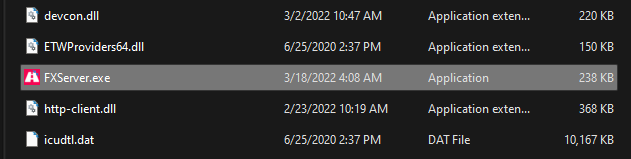
Double click on FXServer.exe to run it. Once loaded, it should open a web browser page.
- 4Step 4
Setup txAdmin
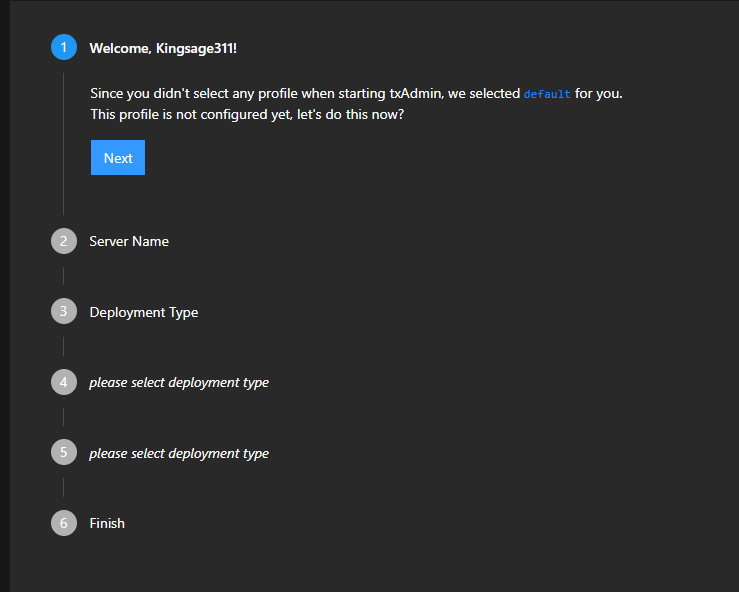
After you link your FiveM account, which it should do automatically, make a password. Then you will be greeted with steps.
- 5Step 5
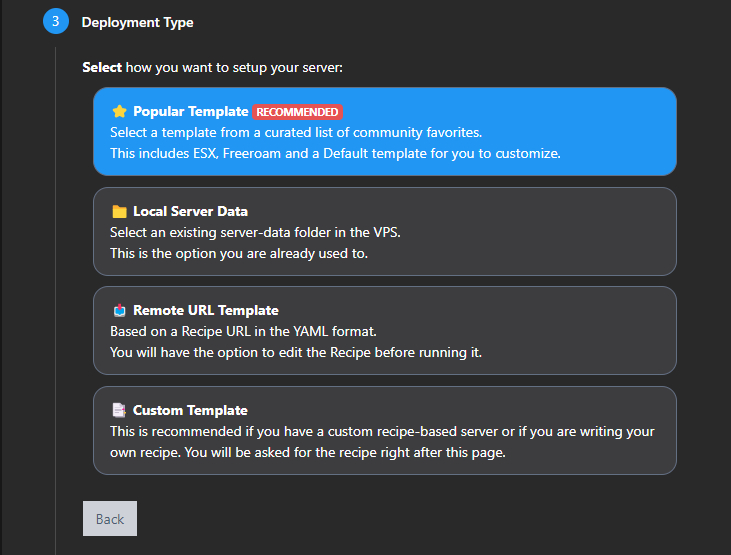
Select Template
When you get to step number 3, click 'Popular Template' then select a template ( I select 'QBCore Framework' ).
- 6Step 6
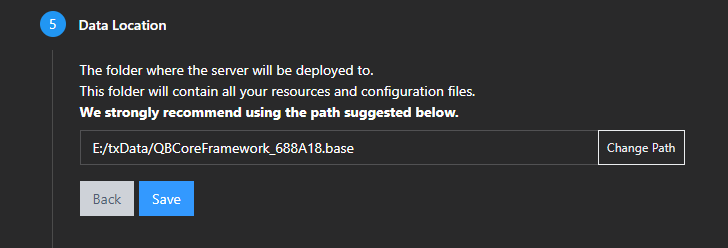
Select Data Folder
Select a folder you would like to store your server data in.
- 7Step 7
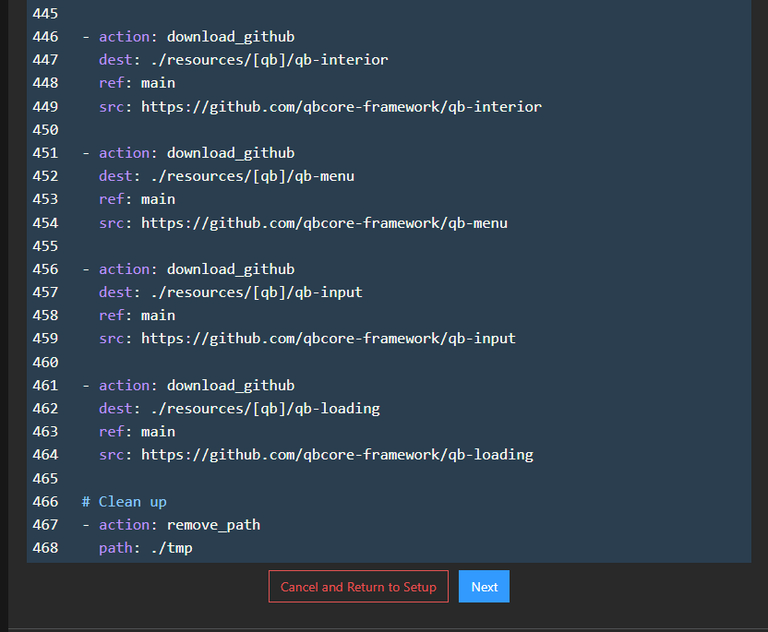
Next Step
Scroll to the bottom and click 'Next'.
- 8Step 8
Enter Key
Paste your Keymaster key where prompted.

- 9Step 9
Run Recipe
Then click 'Run Recipe'. Let yarn install all the way through on the initial startup.

Steps didn't work for you? Our support team is available around the clock.