
Servers3 minutes
Change RDP Port
Change default RDP port 3389 for better security
Heads up
WARNING: Ensure you open the new port in the Firewall BEFORE applying changes, otherwise you will lose access!
- 1Step 1
Open Registry Editor
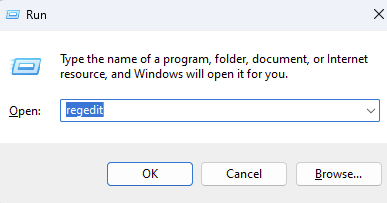
Press Win + R, type 'regedit', and press Enter.
- 2Step 2
Navigate to Path
Go to the following path:
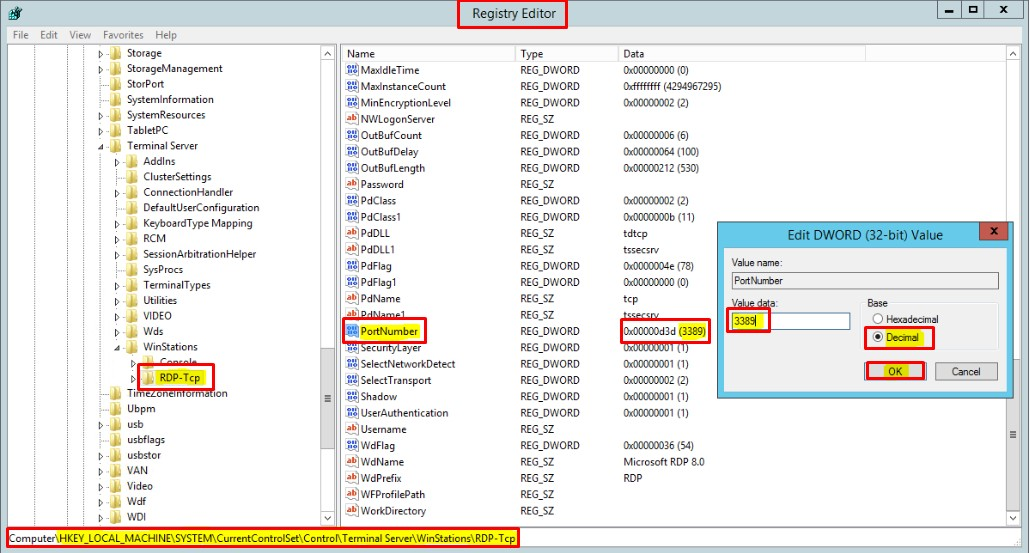
HKEY_LOCAL_MACHINE\System\CurrentControlSet\Control\Terminal Server\WinStations\RDP-Tcp - 3Step 3
Edit PortNumber
Find 'PortNumber' key. Double click it, select 'Decimal', and enter the new port (e.g., 5000).
- 4Step 4
Open Port in Firewall
Open Windows Defender Firewall with Advanced Security. Create a new Inbound Rule for the new port (TCP).
- 5Step 5
Restart
Restart Remote Desktop Services or the entire server.
Need help?
Contact supportSteps didn't work for you? Our support team is available around the clock.