
Servers3 minutes
Change System Language (Windows Server)
How to change display language in Windows Server
- 1Step 1
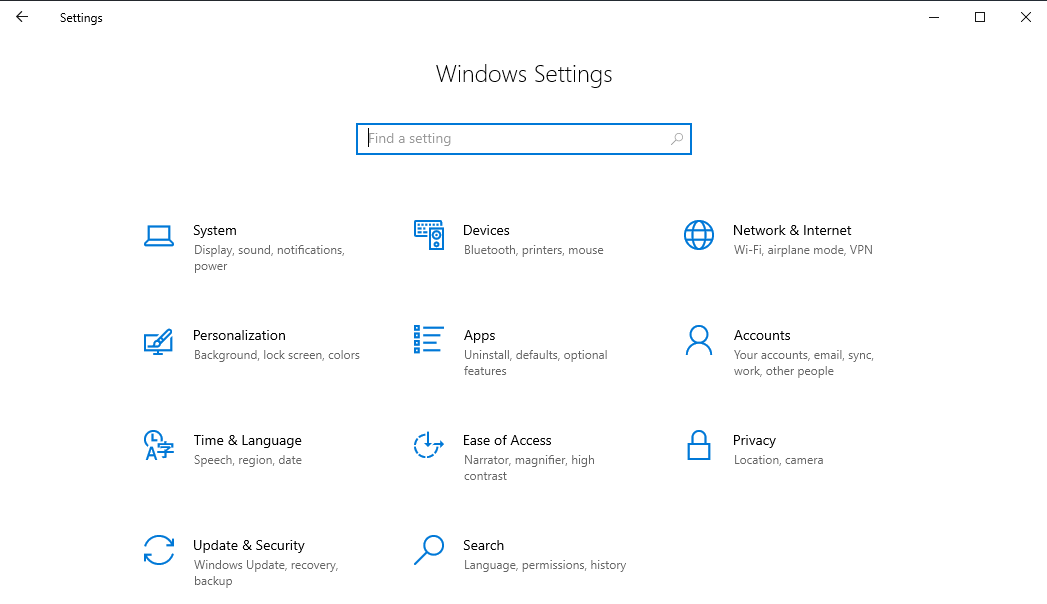
Open Settings
Open Start menu and click on Settings (Gear icon).
- 2Step 2
Time & Language
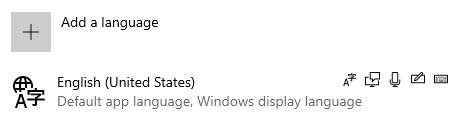
Select 'Time & Language' then choose 'Language' from the sidebar.
- 3Step 3
Add a Language
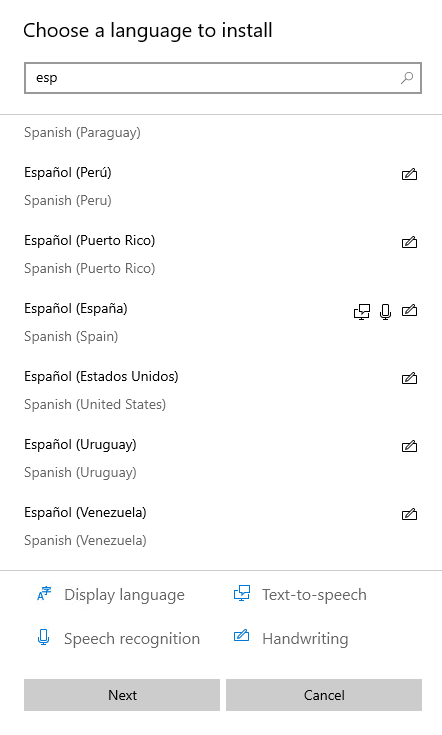
Click 'Add a language'. Search for your desired language (e.g., Arabic) and click Next.
- 4Step 4
Install Language Pack
Ensure 'Install language pack' and 'Set as my Windows display language' are checked. Click Install.

- 5Step 5
Sign Out
Windows will ask you to Sign out to apply changes. Do so and log back in.
Need help?
Contact supportSteps didn't work for you? Our support team is available around the clock.