
Linux Server5 minutes
Link SSH to Visual Studio Code
How to edit server files directly from VS Code
The Remote - SSH extension in VS Code allows you to work on server files as if they were local.
- 1Step 1
Install Extension
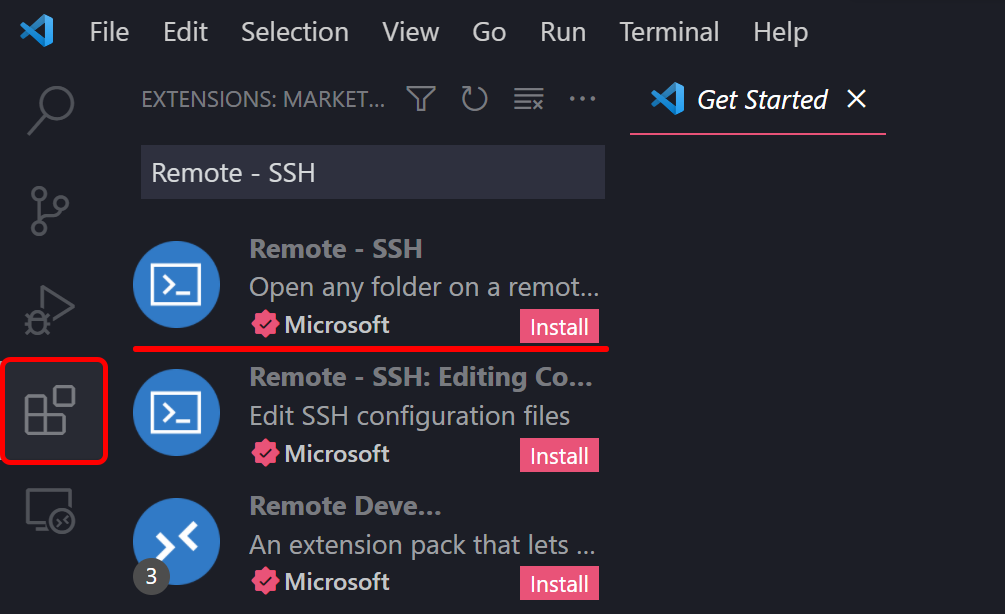
Open Visual Studio Code, go to Extensions, and search for 'Remote - SSH'. Install the extension by Microsoft.
- 2Step 2
Configure Connection
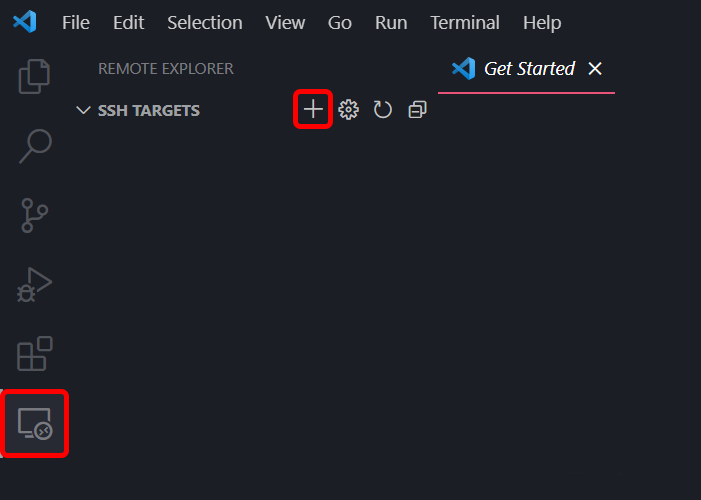
Click the SSH icon in the bottom left corner (or F1 and type 'Remote-SSH: Connect to Host'). Select 'Add New SSH Host' and enter: ssh root@your-server-ip
- 3Step 3
Start Working
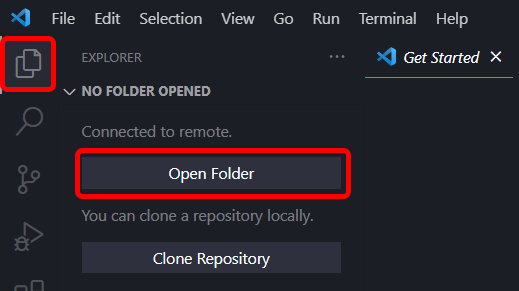
It will ask for password (or use key if configured). Once connected, you can open any folder on the server and edit files directly.
Need help?
Contact supportSteps didn't work for you? Our support team is available around the clock.