
Open Ports (Port Forwarding)
How to allow traffic through Windows Firewall
To allow players to connect to your server (e.g., FiveM or Minecraft), you must open the specific game ports in the firewall.
- 1Schritt 1
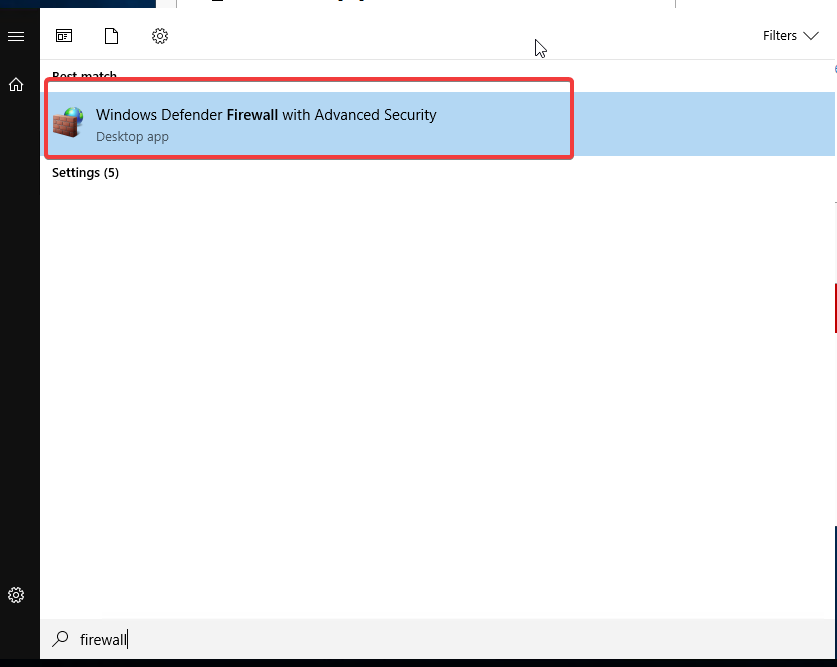
Open Advanced Firewall
Search Start for 'Windows Defender Firewall with Advanced Security' and open it.
- 2Schritt 2
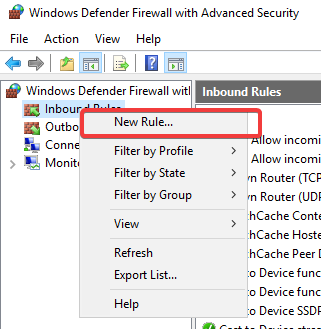
Inbound Rules
Select 'Inbound Rules' from the left pane. Then select 'New Rule' from the right pane.
- 3Schritt 3
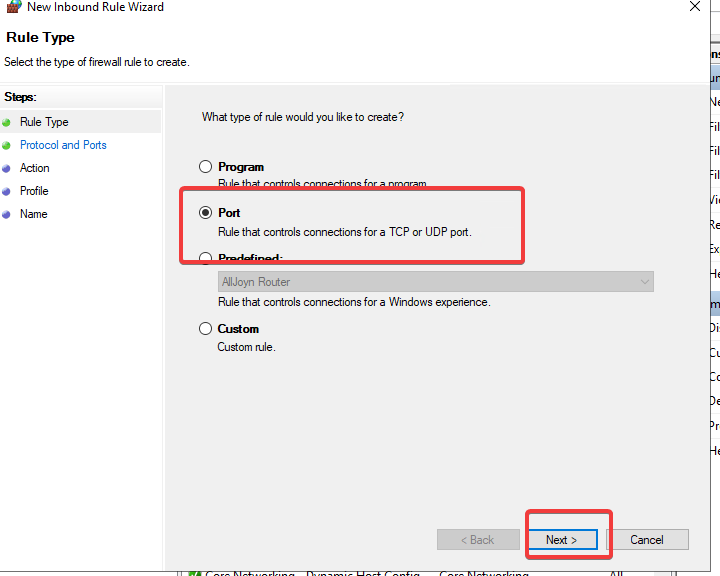
Rule Type
Select 'Port' and click Next.
- 4Schritt 4
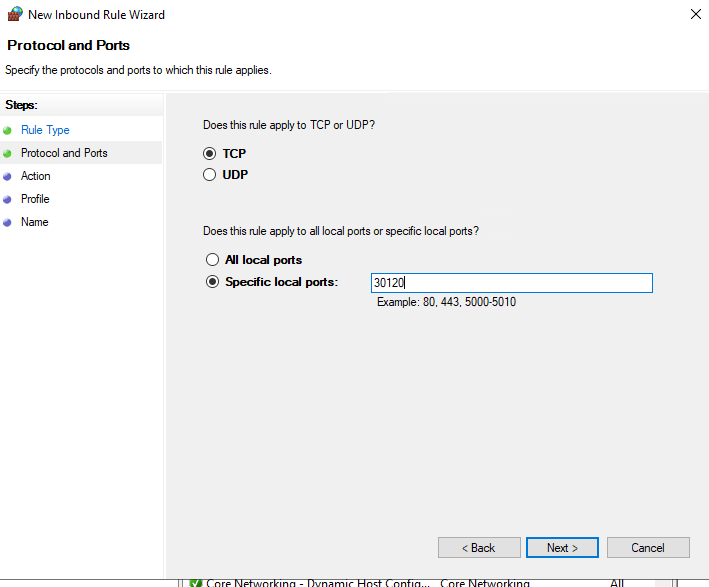
Protocol and Port
Choose TCP or UDP (FiveM needs both). Select 'Specific local ports' and enter the port number (e.g., 30120).
- 5Schritt 5
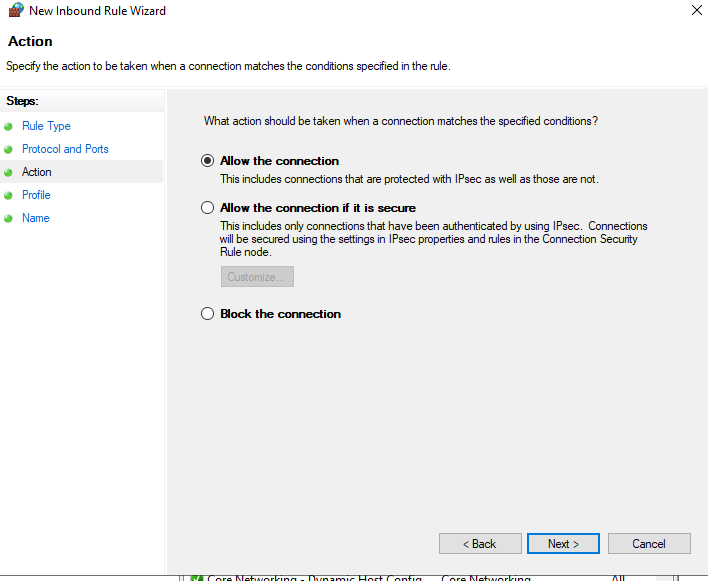
Allow Connection
Select 'Allow the connection' and click Next.
- 6Schritt 6
Name the Rule
Keep profiles (Domain, Private, Public) checked. Finally, name the rule (e.g., FiveM TCP) and click Finish.
- 7Schritt 7
Repeat for Other Protocol
If the game requires both TCP and UDP, repeat the steps for the other protocol.
Die Schritte haben nicht geholfen? Unser Support-Team ist rund um die Uhr da.